
With the Clear Verify Verification Inbox on the Home page, you can effortlessly monitor the status of your verification requests in real-time. We've made it even more user-friendly by introducing the Verification Inbox. This inbox streamlines tracking and improves usability, allowing you to stay up-to-date on your verifications. Continue reading to discover how to use the Clear Verify Verification Inbox.
Topics:
- Searching and Filtering the Inbox
- Creating a Verification Request
- Verification Inbox Statuses
- Audit Log and Comments
The Home tab houses one of our favorite features, the Verification Inbox. Here you will find all of your verification requests.
Searching and Filtering the Inbox
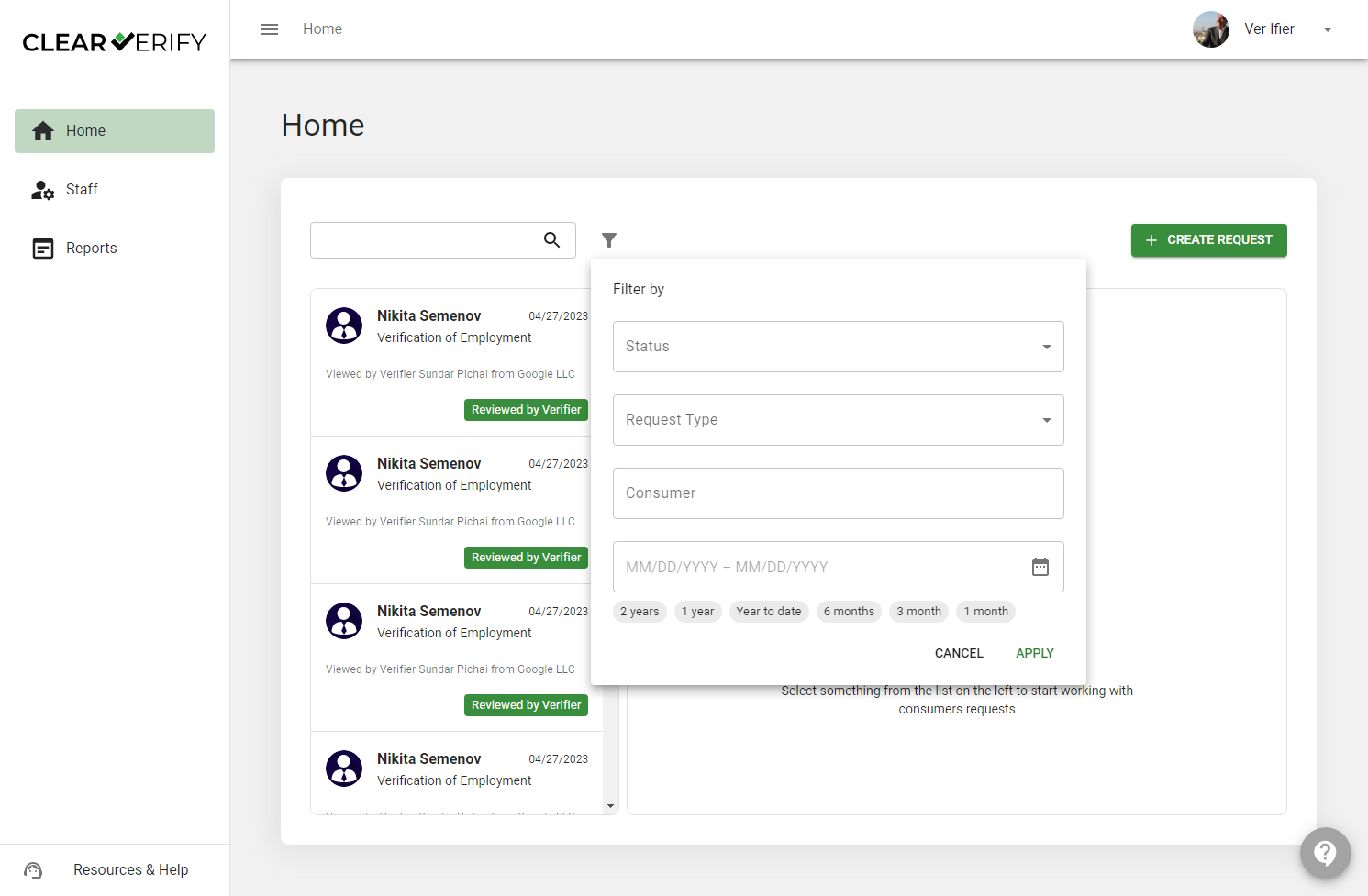
To help you quickly locate the verification request you are looking for, utilize the search and filter functions. You can select multiple statuses at once
Creating a Verification Request
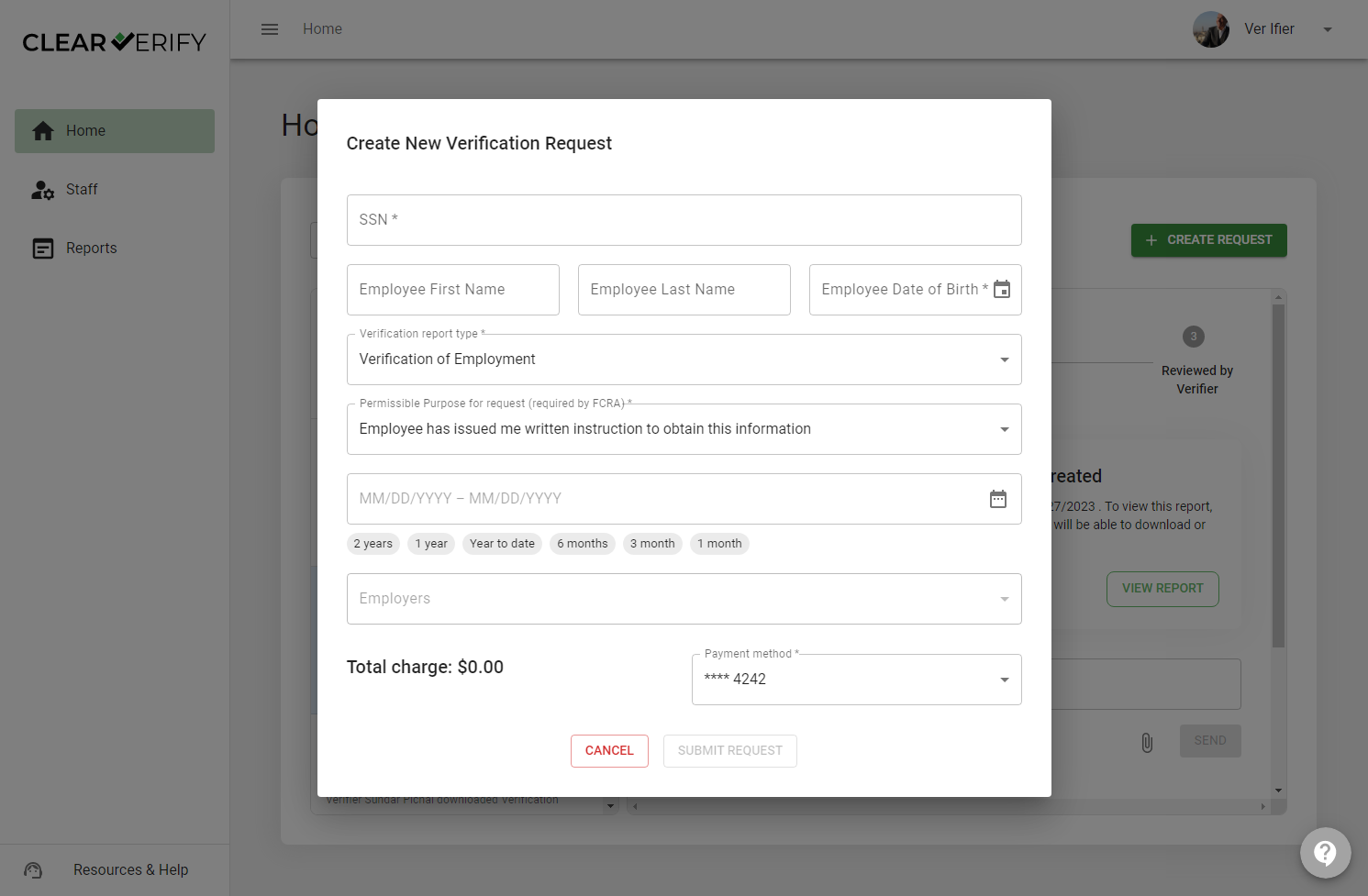
You can create a new verification request by clicking ‘+ Create Request.’ Visit the Requesting Verifications article to learn more.
Verification Inbox Statuses
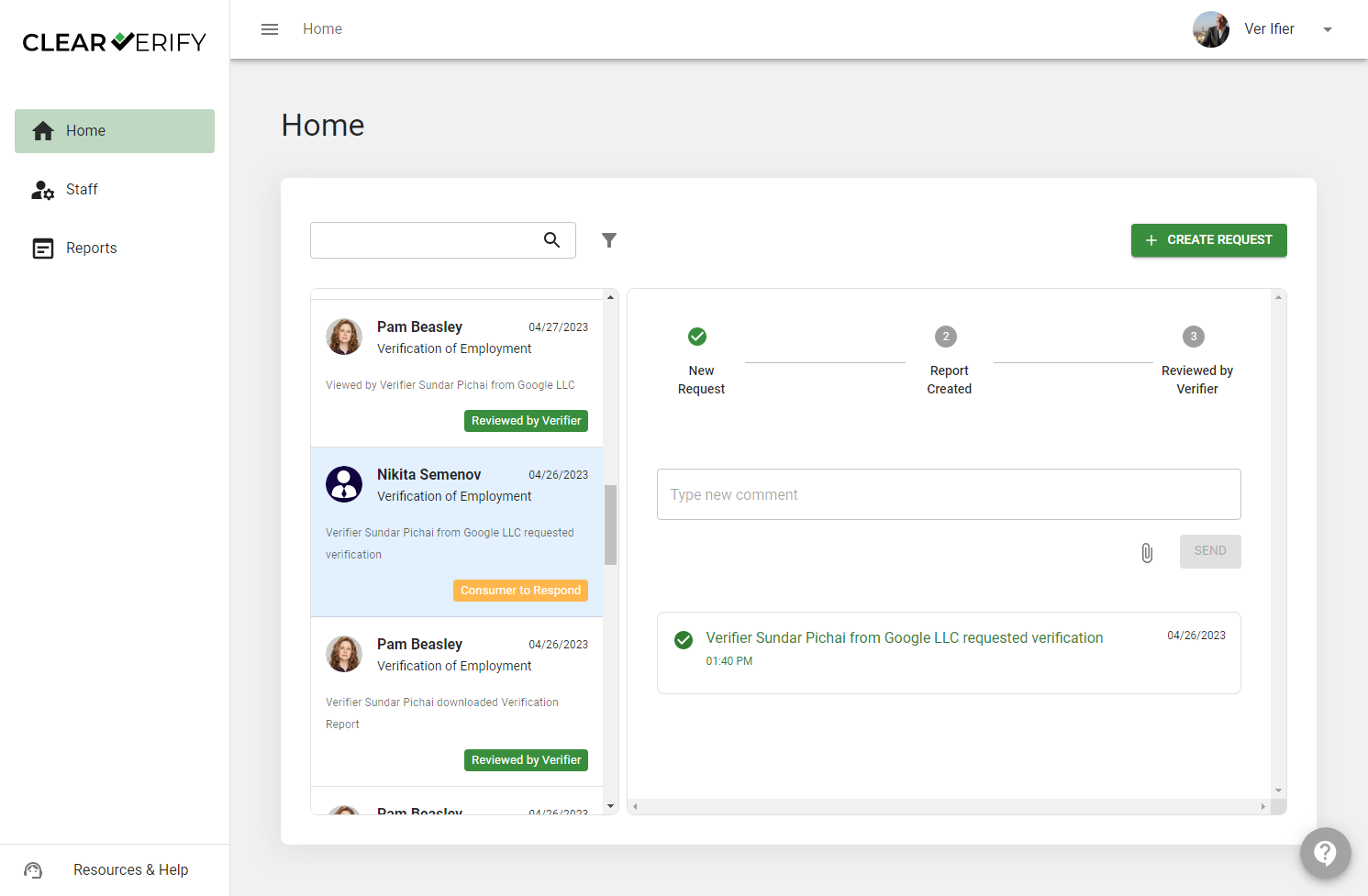
The Verification Inbox will list different statuses for each verification depending on its state, with the ability to sort and filter. See below to learn about each status:
- New Request
- Employee to Respond
- Report Created
- Reviewed by Verifier
- Verifier to Respond
New Request
When a verification request is created, the status will be listed as ‘New Request’. Normally, this will automatically and instantly switch to the ‘Report Created’ status. However, there are two scenarios where additional approval is necessary for commercial verifications:
- The employer of the employee in question has elected to grant employees the option to 'Approve' or 'Deny' commercial verifications AND the employee has turned on this function.
- The employee is protected by Consumer Privacy Laws such as CCPA. In either of these scenarios, the employee may need to 'Approve' your commercial verification request. The status for these scenarios will be 'Employee to Respond'.
Employee to Respond
When a verification request requires approval by the employee, you will see the status ‘Employee to Respond.’ Once the employee makes their determination, you will be notified of the result. If the employee “approves”, the verification report will be generated. If the employee ‘Denies’ the request, your payment will be refunded.
The consumer has 7 days to respond to the request. If they do not respond, you will be refunded.
Report Created
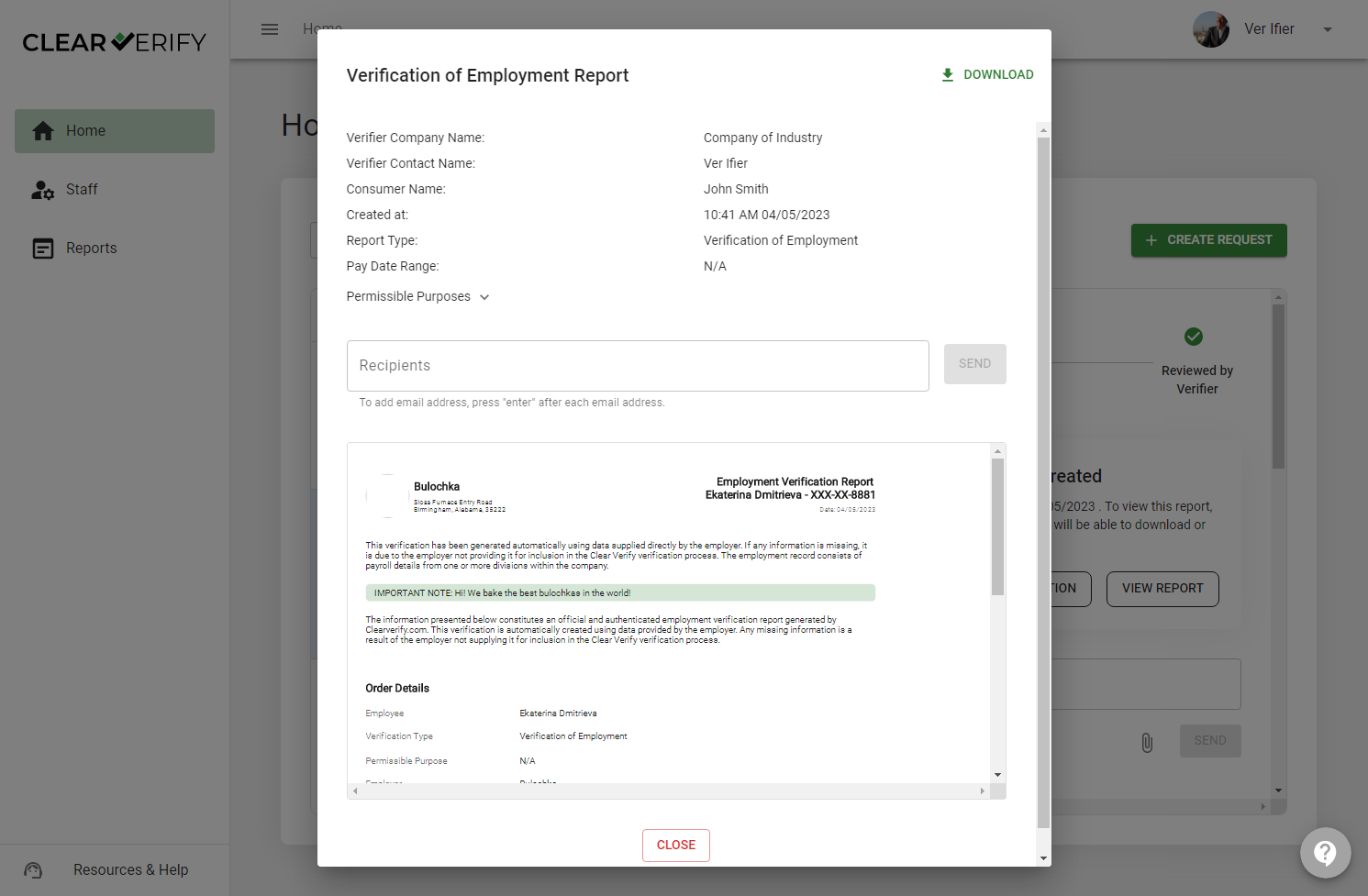
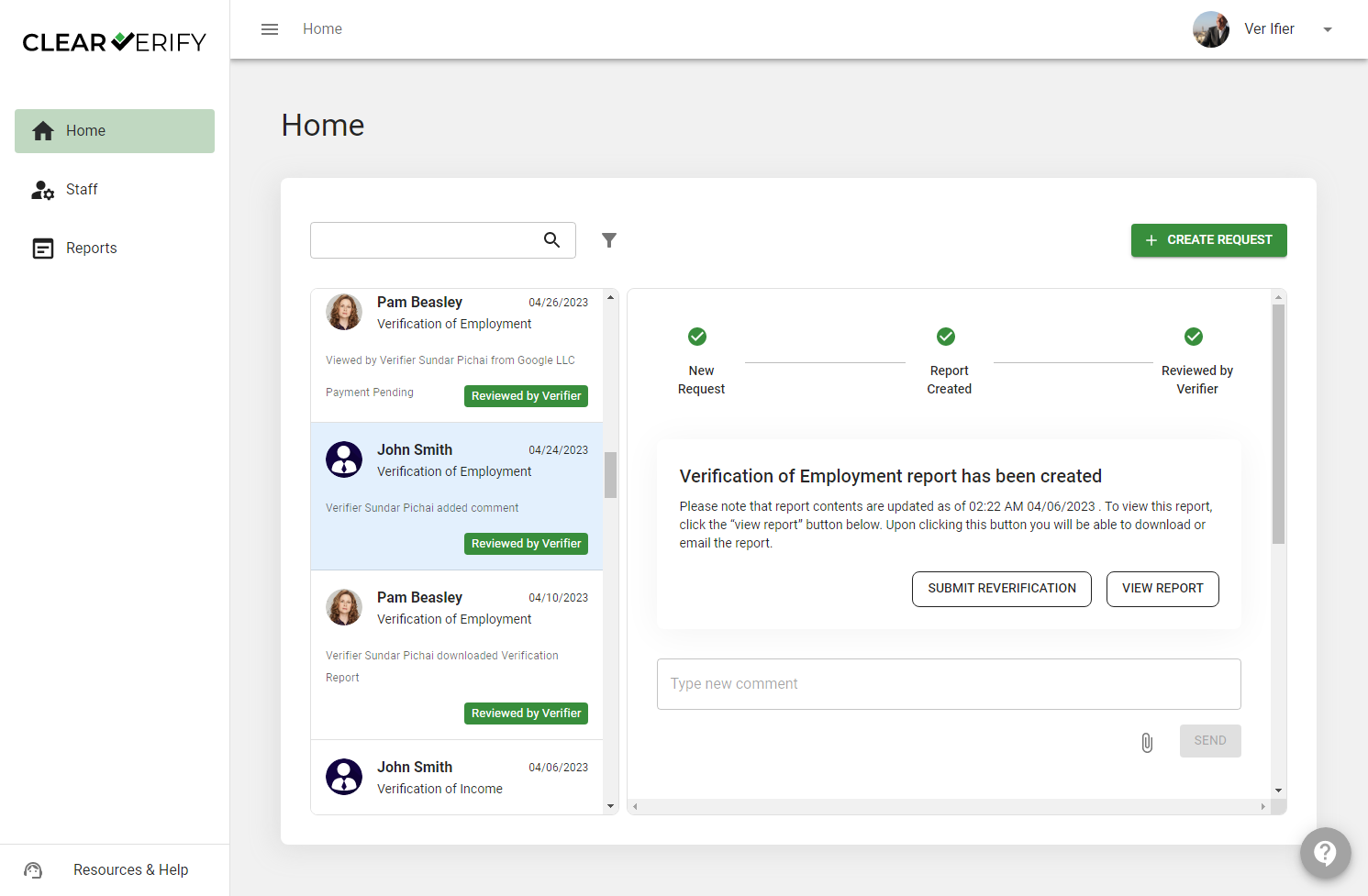
When a verification request has been confirmed, the request will change to the 'Report Created' status. At this point, you will receive a notification letting you know that the report is ready to view.
Reviewed by Verifier
Once you log back in and click on the verification in the inbox, the status will move to ‘Reviewed by Verifier.’ This stage provides visibility to the employee that you have viewed their verification report.
Verifier to Respond
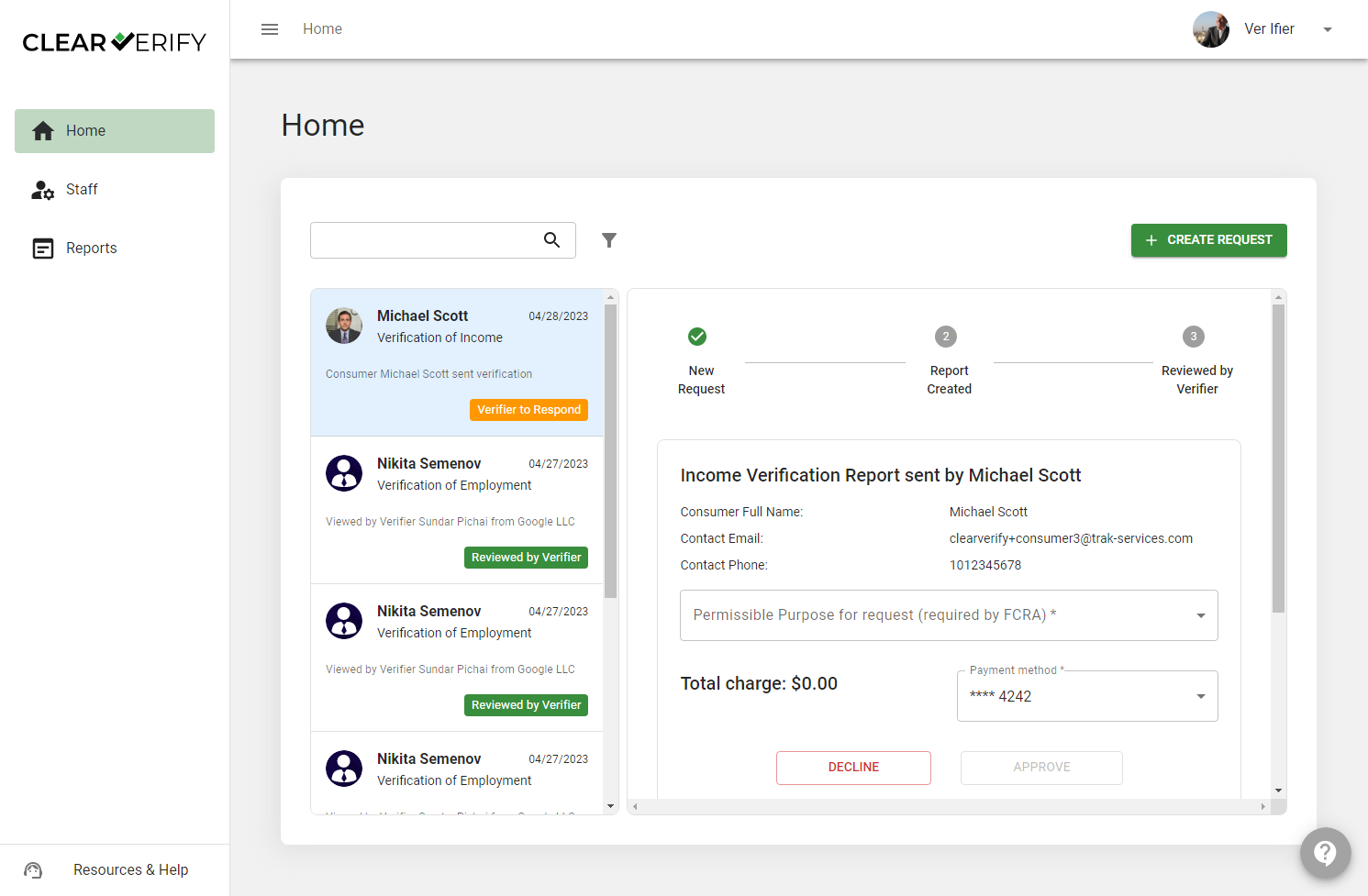
Through Clear Verify, employees have the option to proactively send verifications to verifiers. In the event that an employee proactively sends a verification to you, you will have the option to:
- ‘Approve’ - you will be prompted to select your Permissible Purpose and select or enter your payment method
- ‘Decline’ - if you received this verification report in error, or do not require this verification report, you can decline and the employee will be notified.
Audit Log and Comments
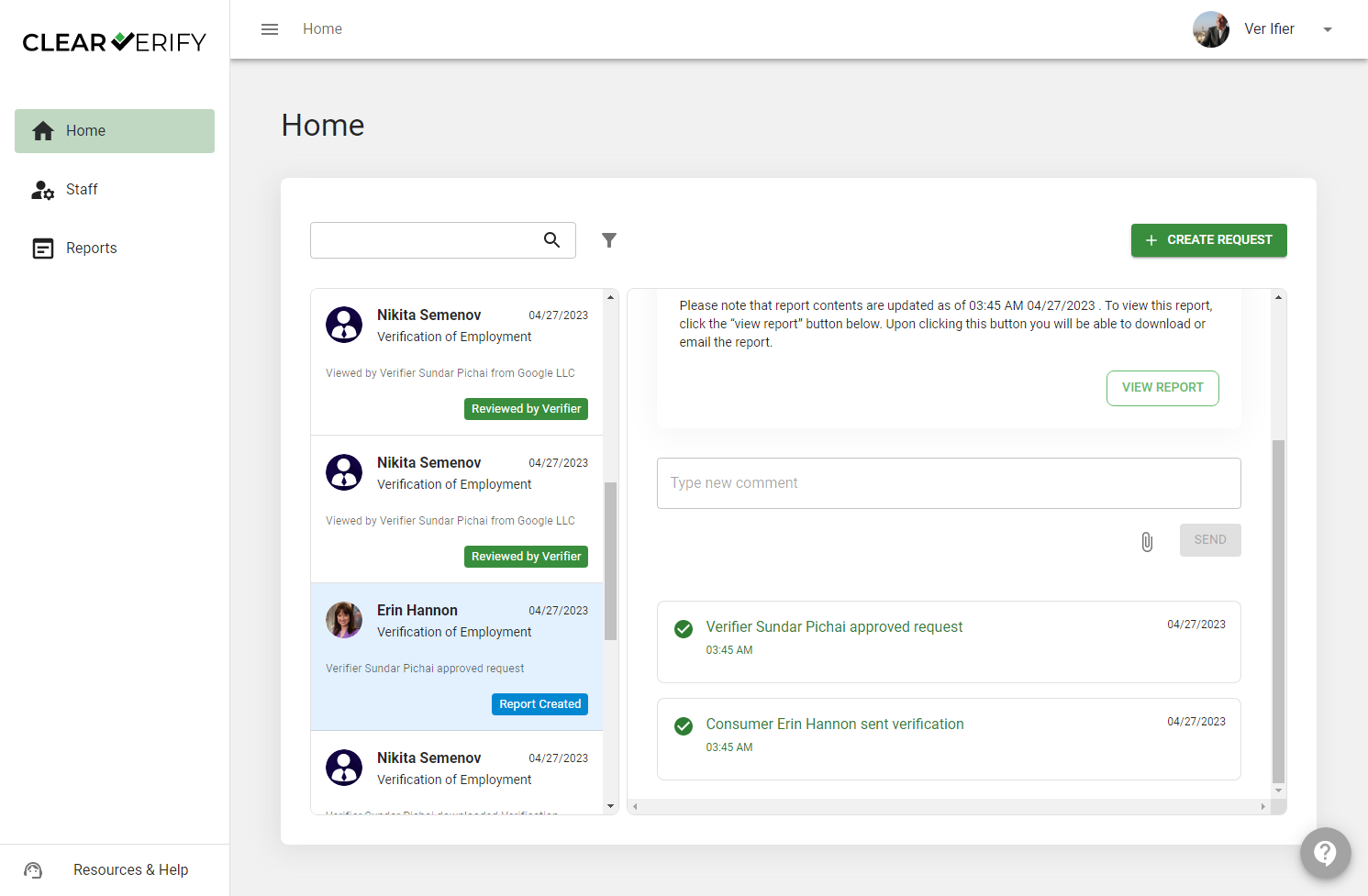
On each verification request, you will be able to see a full audit log of all events that have taken place with the request.
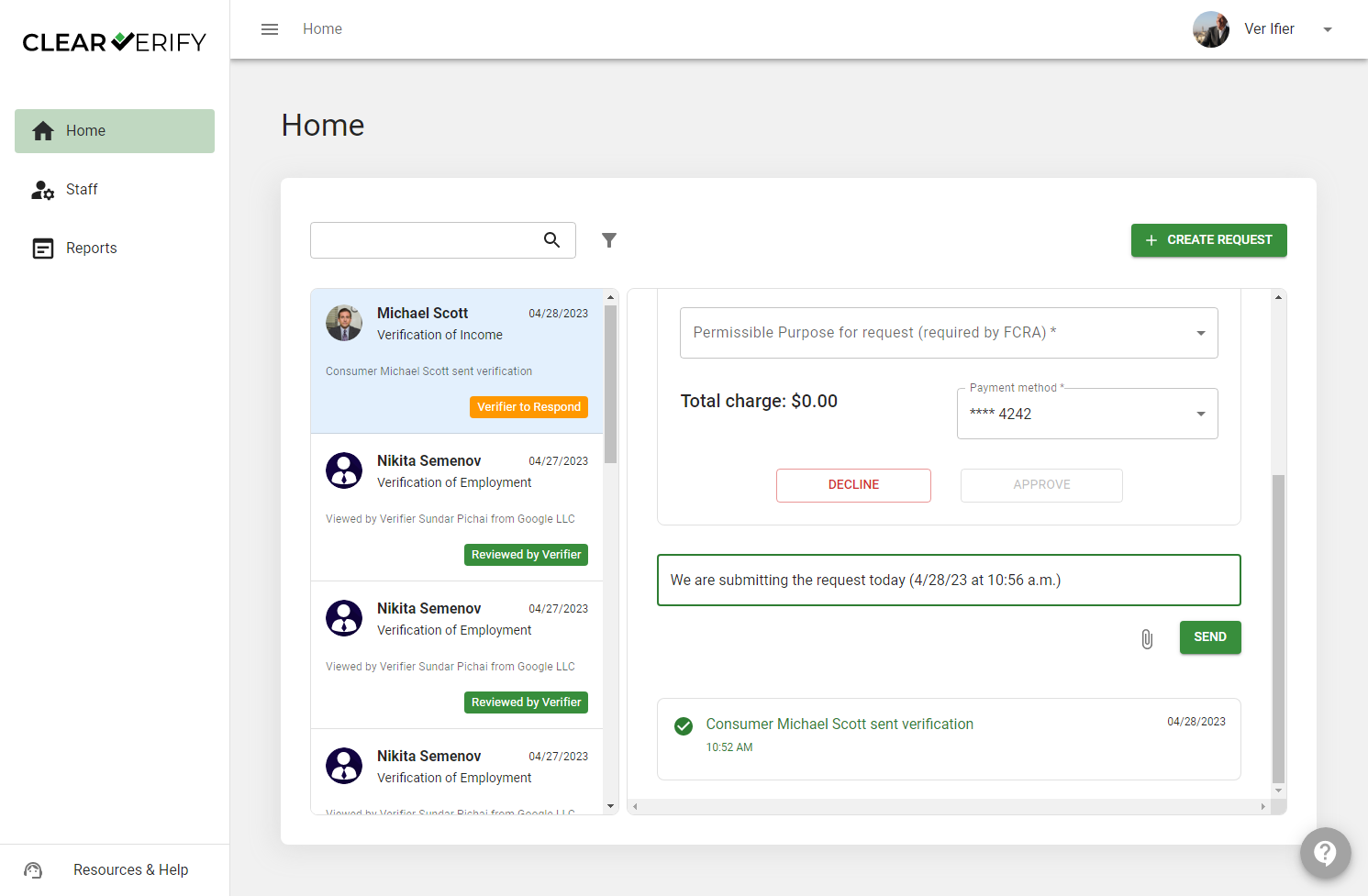
Additionally, if you need to share anything with the employee through the platform, you will have the option to send comments and attachments securely.
Need more help?