
With Clear Verify, employees have the ability to proactively share verification reports with you by using our My Verify feature, saving time and effort. Keep reading to learn how this works and what options you have when it does.
Topics:
- What are Employee Driven Verifications
- Responding to a My Verify Request
What are Employee Driven Verifications?
By using our My Verify feature, employees are able to send verification requests directly to you. If an employee is using Clear Verify, you can let them know about this feature to streamline the verification process, or they may preempt your request with this feature.
Responding to a My Verify Request
Once an employee sends you a My Verify request, you will receive an email notification. You should then respond by navigating to the request in Clear Verify. The verification inbox status will be labeled as ‘Verifier to Respond.’
Once you have navigated to the request, you will have the option to:
- ‘Approve’
- ‘Decline’
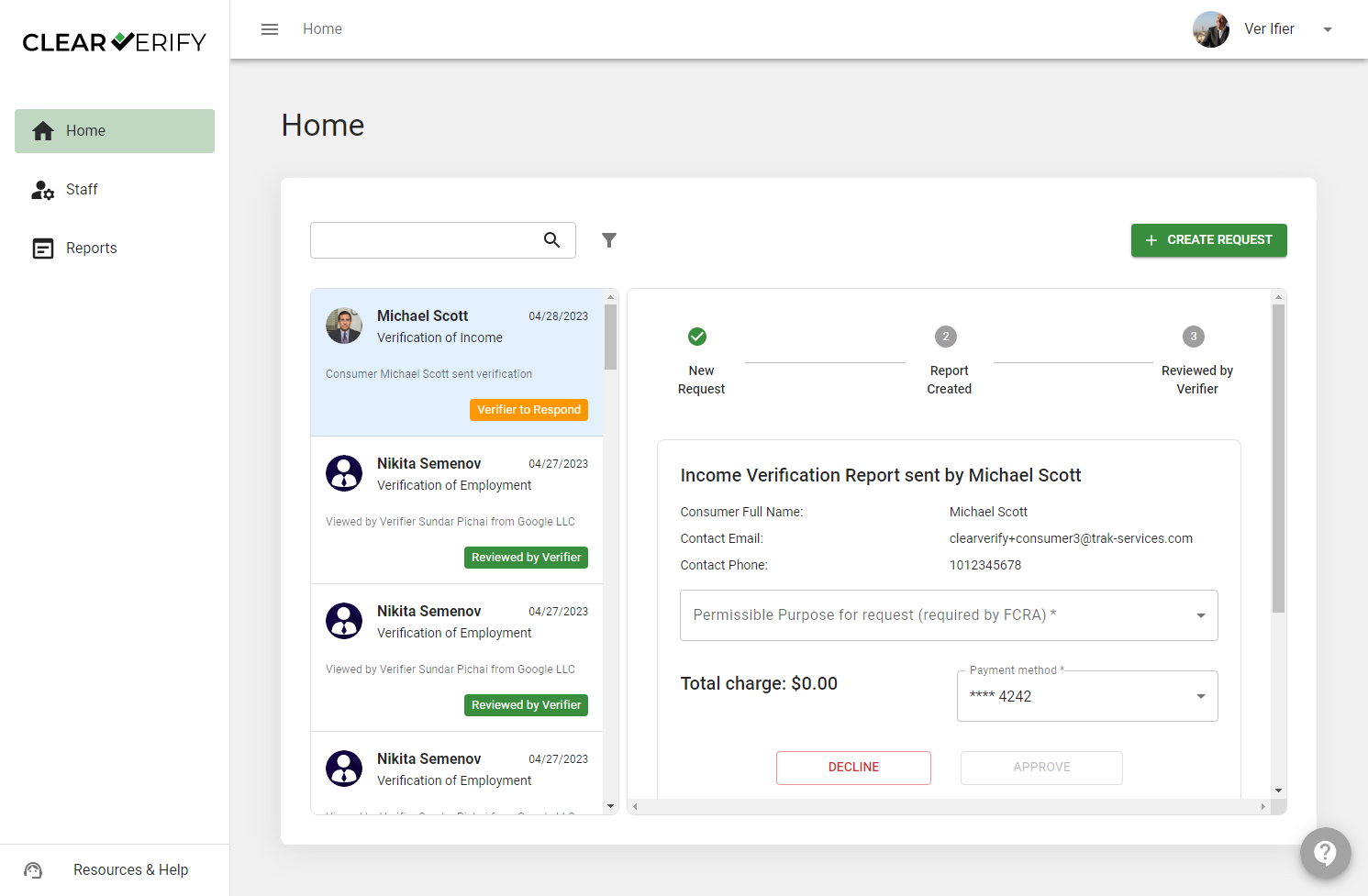
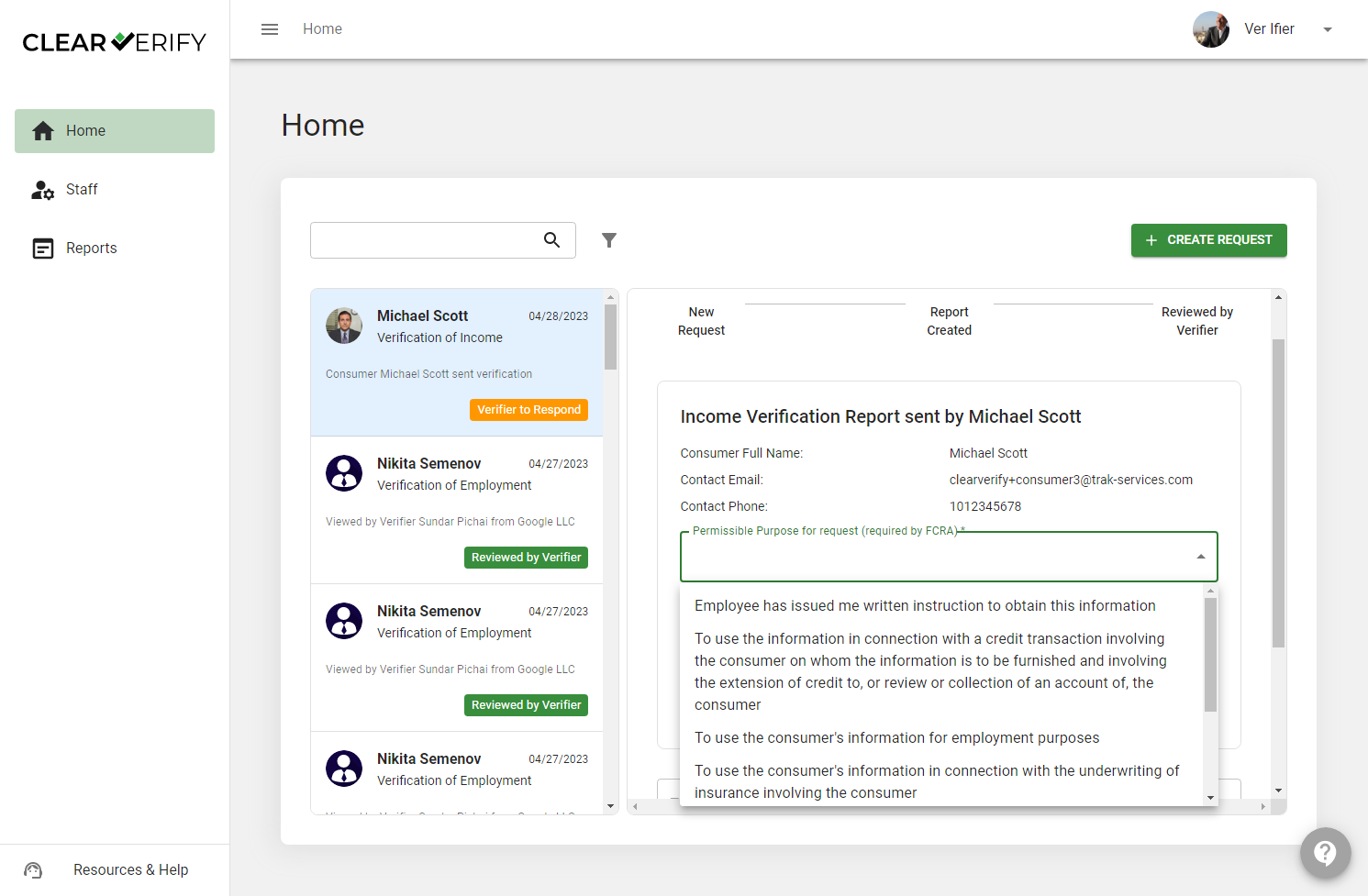
If you would like to approve this request, you will be prompted to confirm the Permissible Purpose and input your payment method. Once complete, click ‘Approve.’
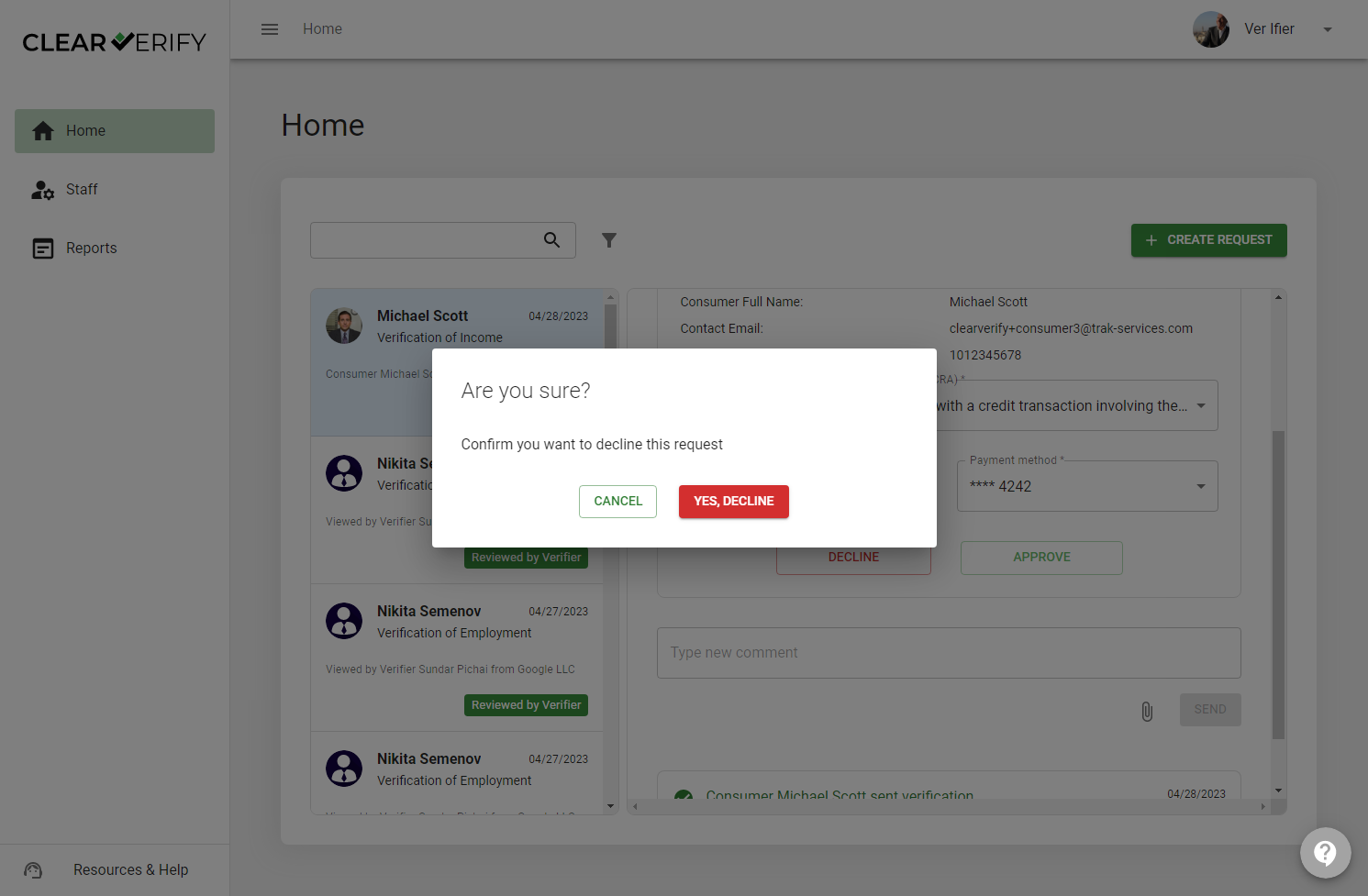
If you received this verification report in error, or do not require it, you can decline and the employee will be notified. Click ‘Yes, Decline’ in the pop-up window to confirm.
The My Verify request will expire in 7 days if you do not respond.
Need more help?