
Requesting employment and income verifications has never been easier! Keep reading to learn how to initiate verification requests on the Clear Verify Home page.
Create a Verification Request
To create a verification request, simply click the button labeled ‘+ Create Request’ on the Home page (also known as the Verification Inbox) to start a new request.
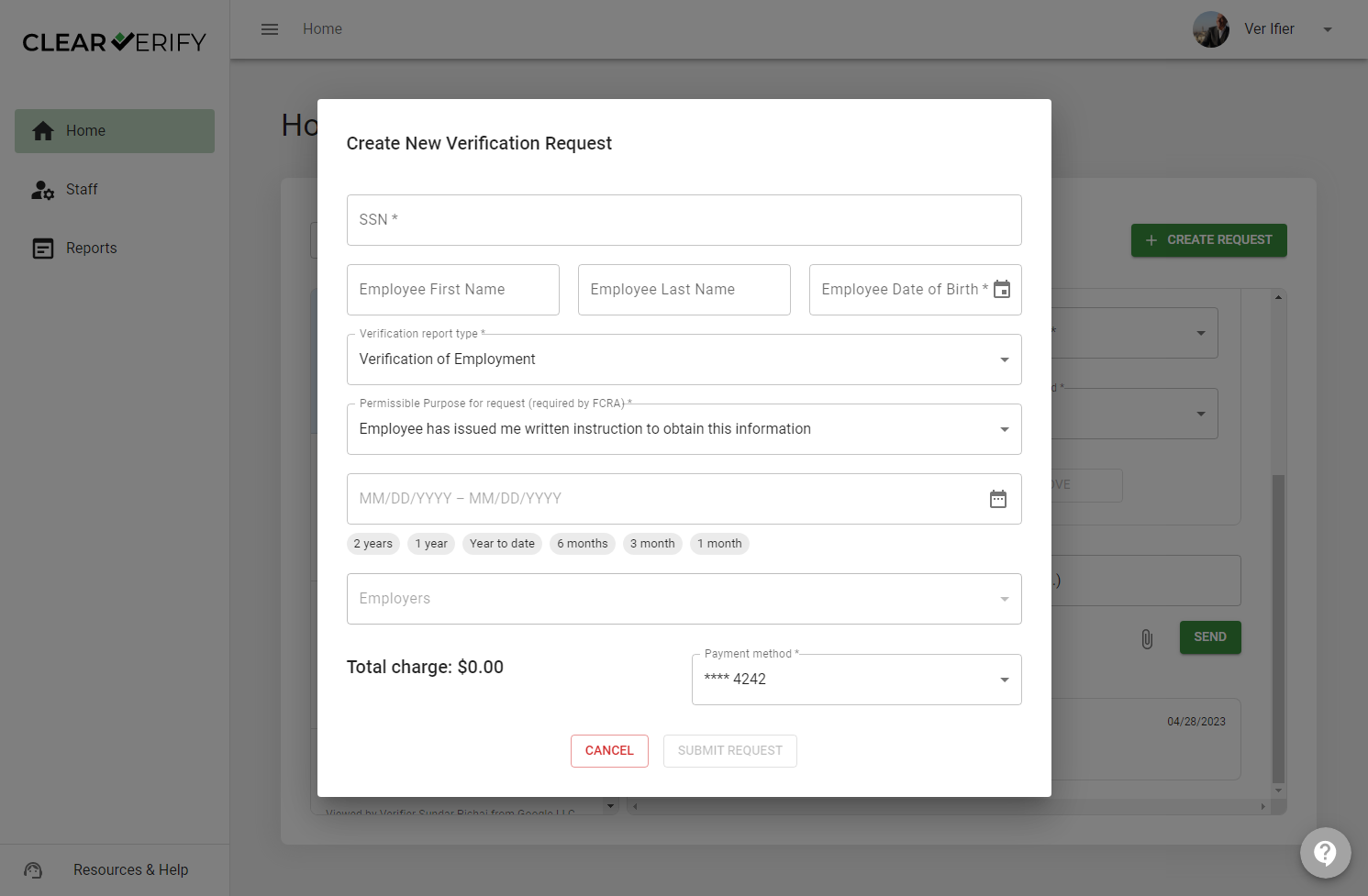
To submit a verification request, you will be asked to provide the following information:
- Social Security Number: Input the employee’s SSN.
- Employee First Name: Input the employee’s first name.
- Employee Last Name: Input the employee’s last name.
- Employee Date of Birth: Input the employee’s date of birth.
- Verification Report Type: Select the verification report type:
- Commercial Verifiers
- Verification of Employment (VoE)
- Verification of Income (VoI)
- Social Services
- Standard Government Verification of Employment
- Commercial Verifiers
- Permissible Purpose for Request (required by FCRA): Select the applicable Permissible Purpose for your request. This will be auto filled with the purpose you were credentialed for during registration.
- Pay Date Range: Choose the pay date range of the verification report by either selecting the date tags below or manually selecting from the date picker.
- Note to Employee: Send a note with the verification request.
- Payment Method: Select your payment method or add a new one.
- = required
Once you have finished inputting this information, click ‘Submit Request.’ Verification requests are automatically and instantly processed unless Approvals Required are turned on for commercial verifications.
Need more help?