
Once you have requested a VoI or VoE and it has been confirmed, you will gain access to the report. Keep reading to learn how to gain access, download, and share verification reports on the Clear Verify Home page.
Accessing Verification Reports
To access a verification report, first select the verification request you want to view on the Home page (also known as the Verification Inbox). You can search the inbox by using the search bar or filter function.
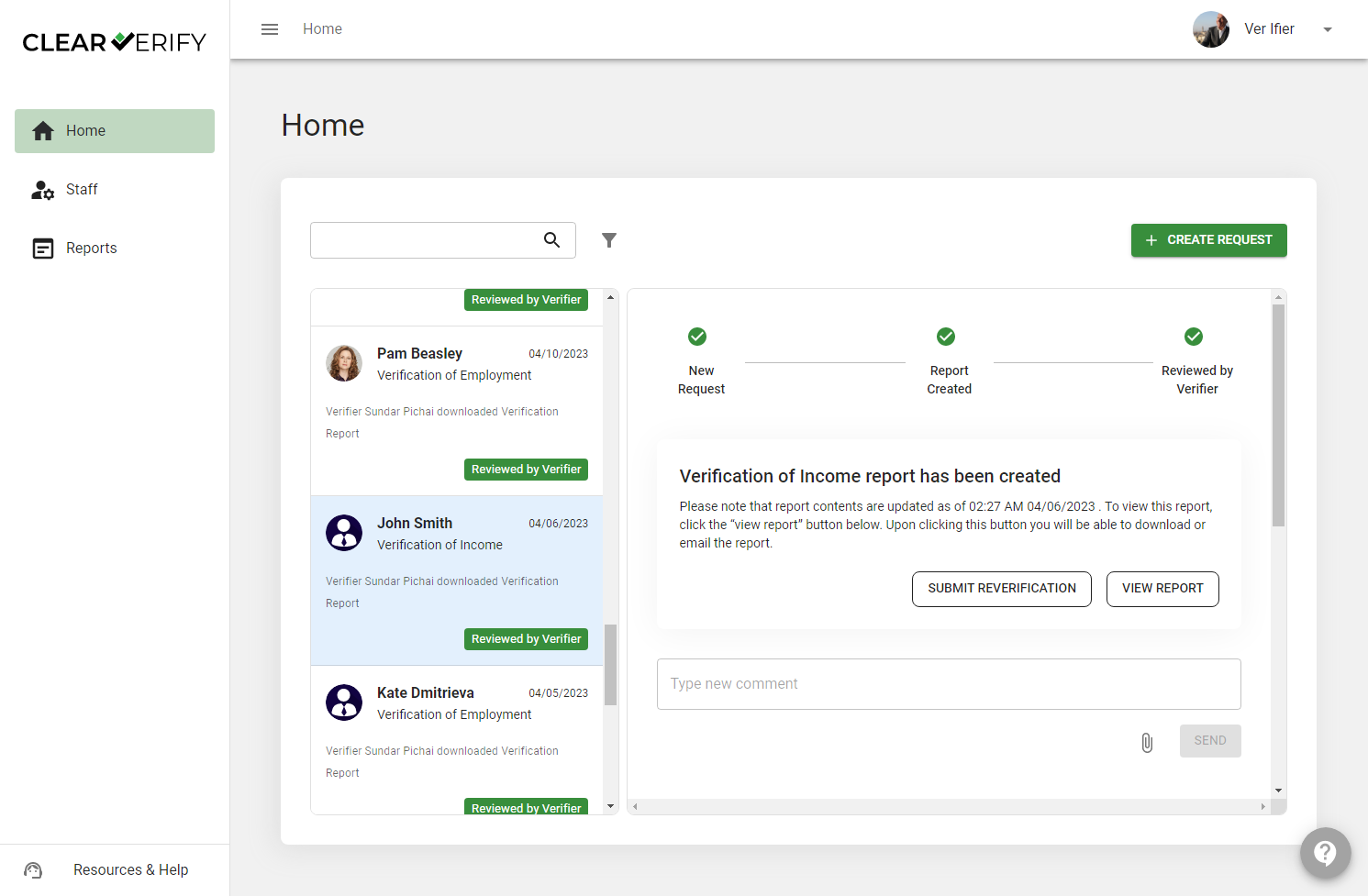
Next, click ‘View Report.’
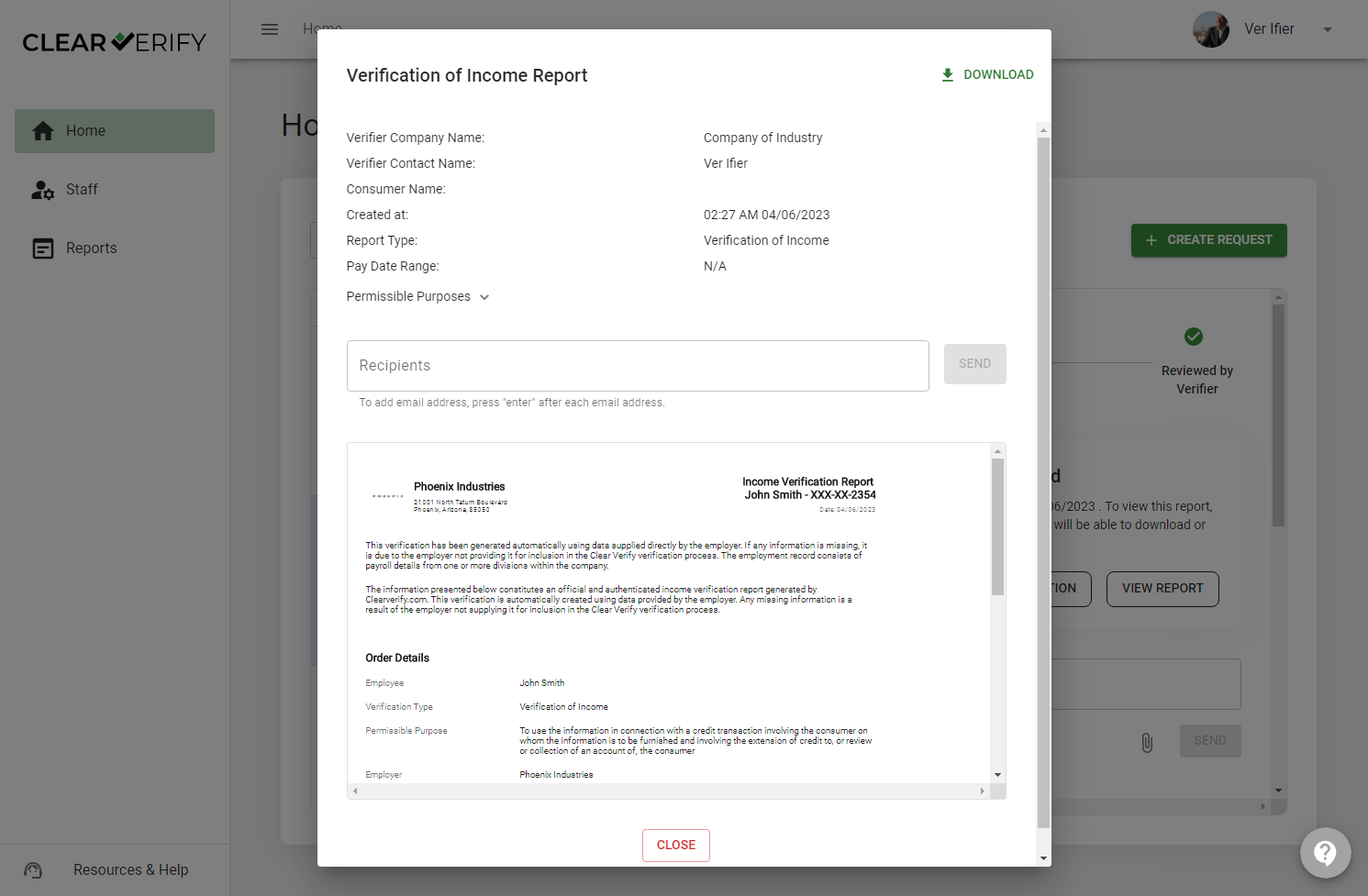
You will see a modal pop up, outlining the details of the verification request, including:
- Order Details: All order details pertaining to this verification request
- Report Preview: Preview of the report, allowing a quick look at the verification report
- Download: Button allowing you to download the verification report
- Recipients: A feature that enables you to type in the email addresses of colleagues or other required recipients to send the report via email automatically.
You can return to this detail screen as needed to download, send, or review the verification report at your convenience.
Need more help?