
In the Staff tab, you can view and manage the team associated with your account. Keep reading to learn more about managing your staff with Clear Verify.
Topics:
- Inviting Users
- User Details
Inviting Users
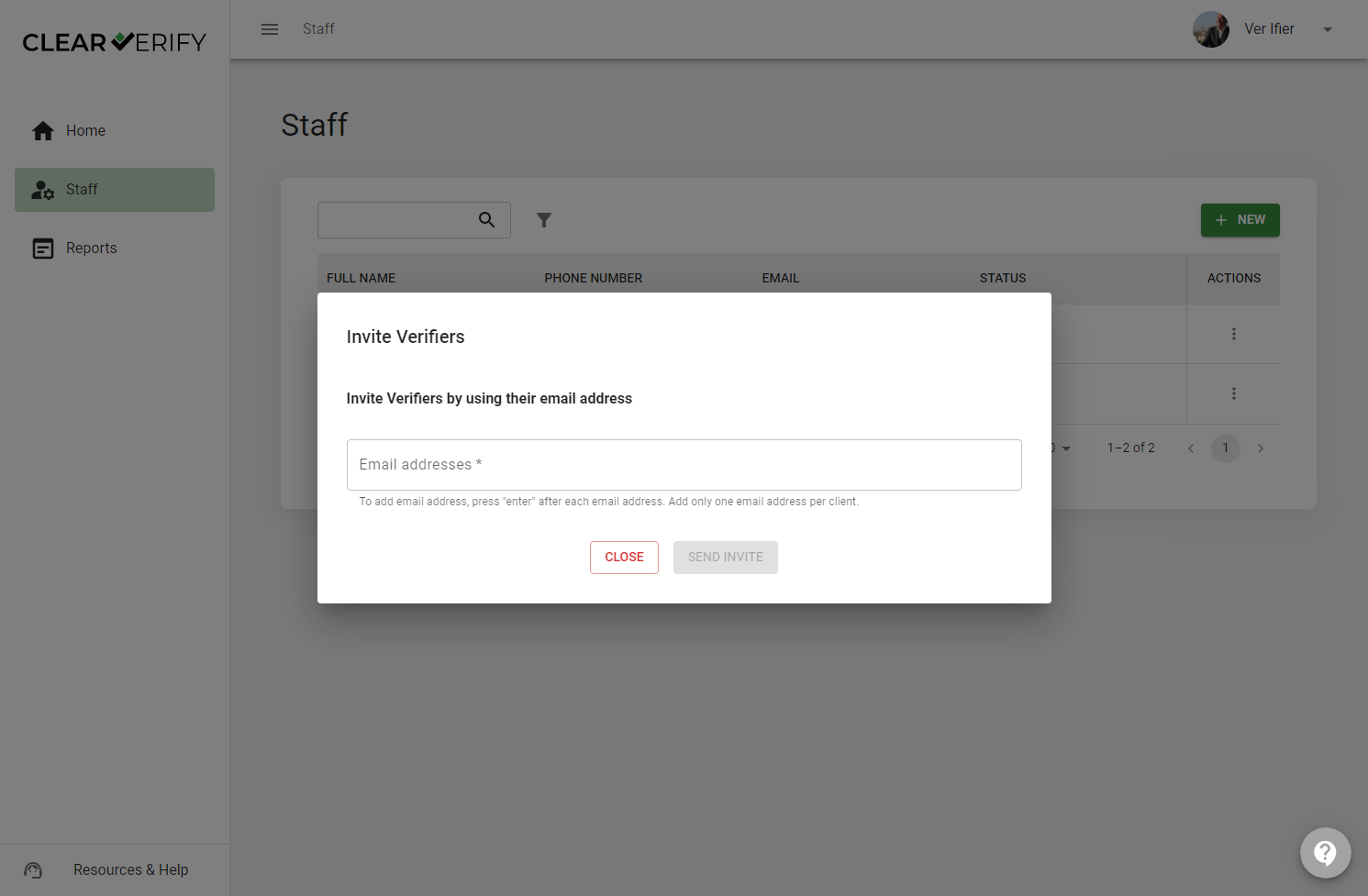
Navigate to the Staff tab. To add a staff member, click the ‘+New’ button. Simply input the user’s corporate email address and click enter. To add multiple users at the same time, click enter after each user. Then click ‘Send Invite.’
User Details
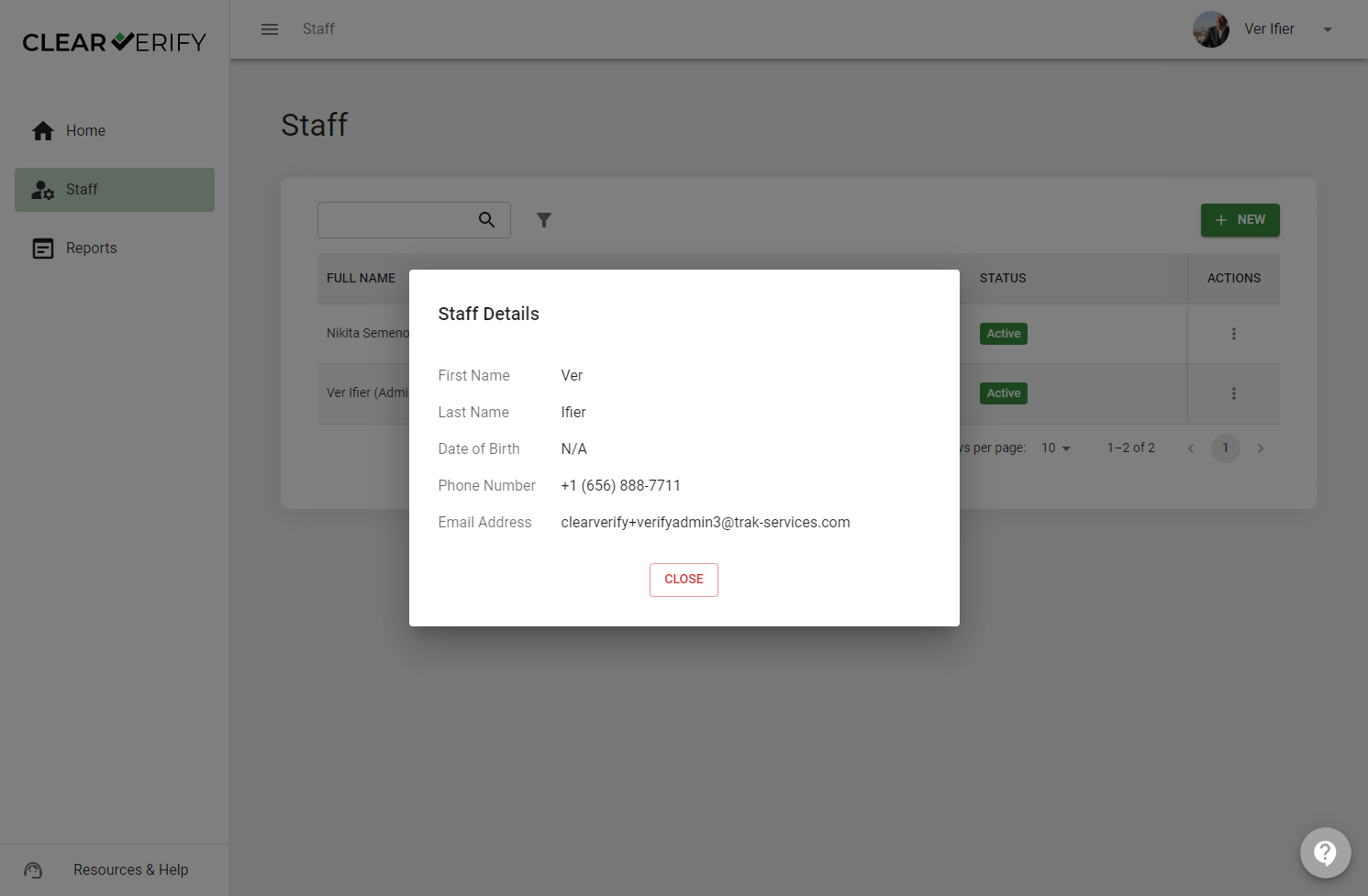
To view the details of a user, locate the ⫶ icon under the “Actions” column next to the user, then click 'View Details.' This will display various details about the user and allow you to activate or deactivate them.
Need more help?