
Creating a Clear Verify account is quick and easy! To access verifications, simply follow the instructions below to sign up and confirm your information. If you need any help along the way, feel free to contact our support team at support@clearverify.com.
Topics:
- Sign-up Process
- Sign-in Process
- Resetting Your Password
Sign-up Process
The sign-up process is triggered in one of two ways: either an employee shares their verification report with you, or you request a verification report from an employee. In either case, the sign-up process is similar.
Go to https://clearverify.com.
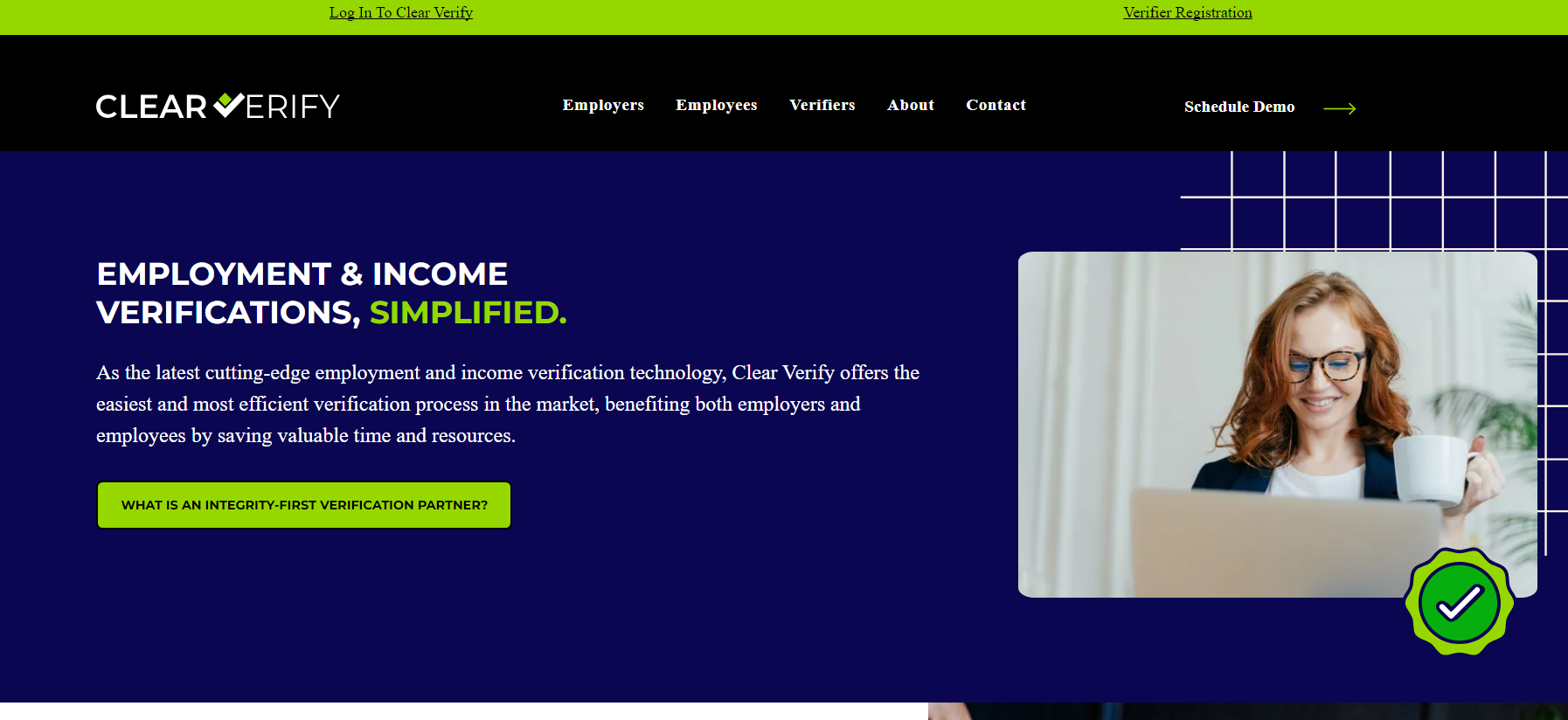
Select ‘Verifier Registration’ at the top of the homepage.
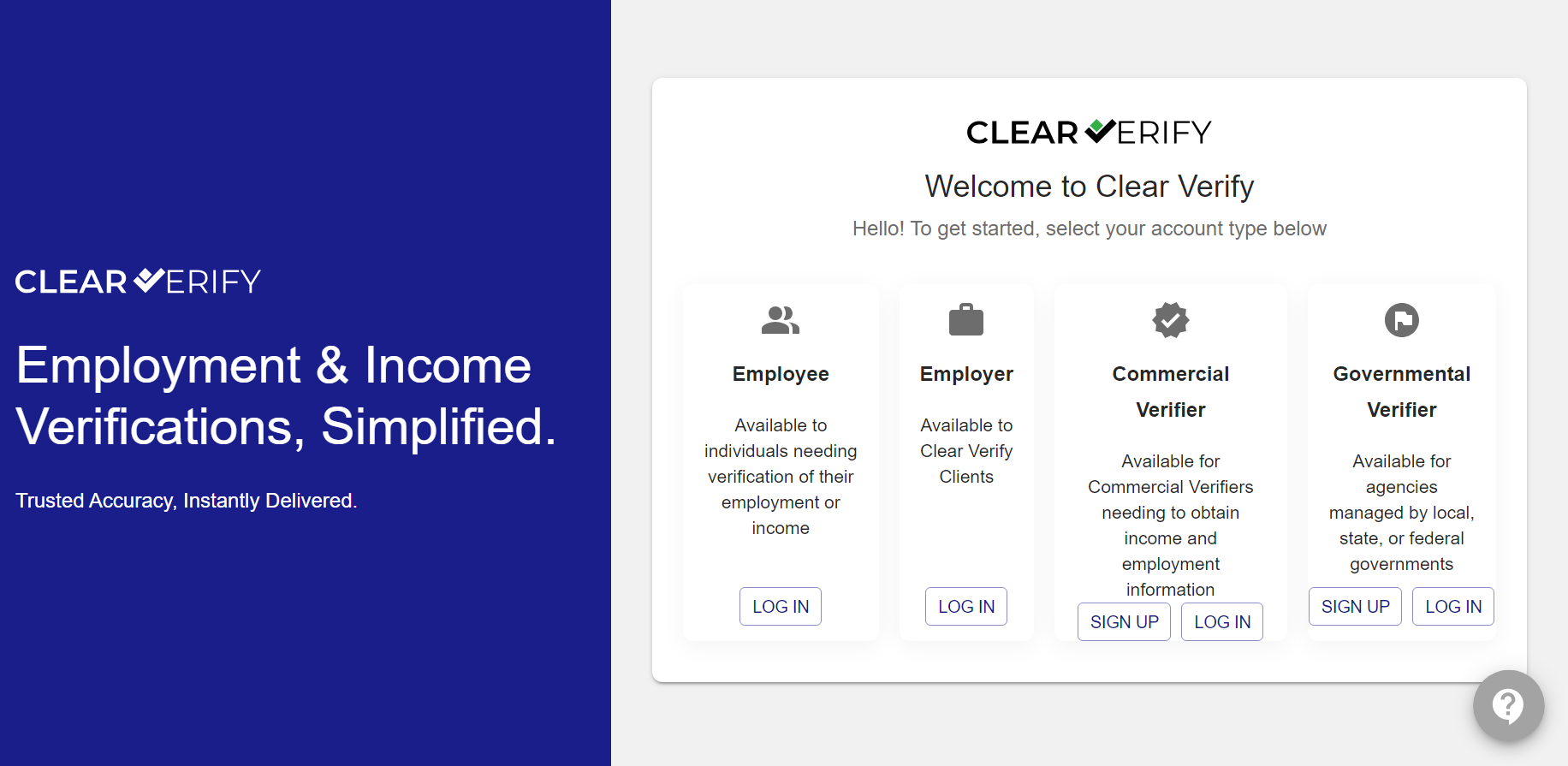
Select ‘Sign Up’ under your user type: “Commercial Verifier” or “Governmental Verifier” (Social Service Agencies ONLY).
You will be directed to a sign-up page where you will be asked to provide your contact and sign-up information.
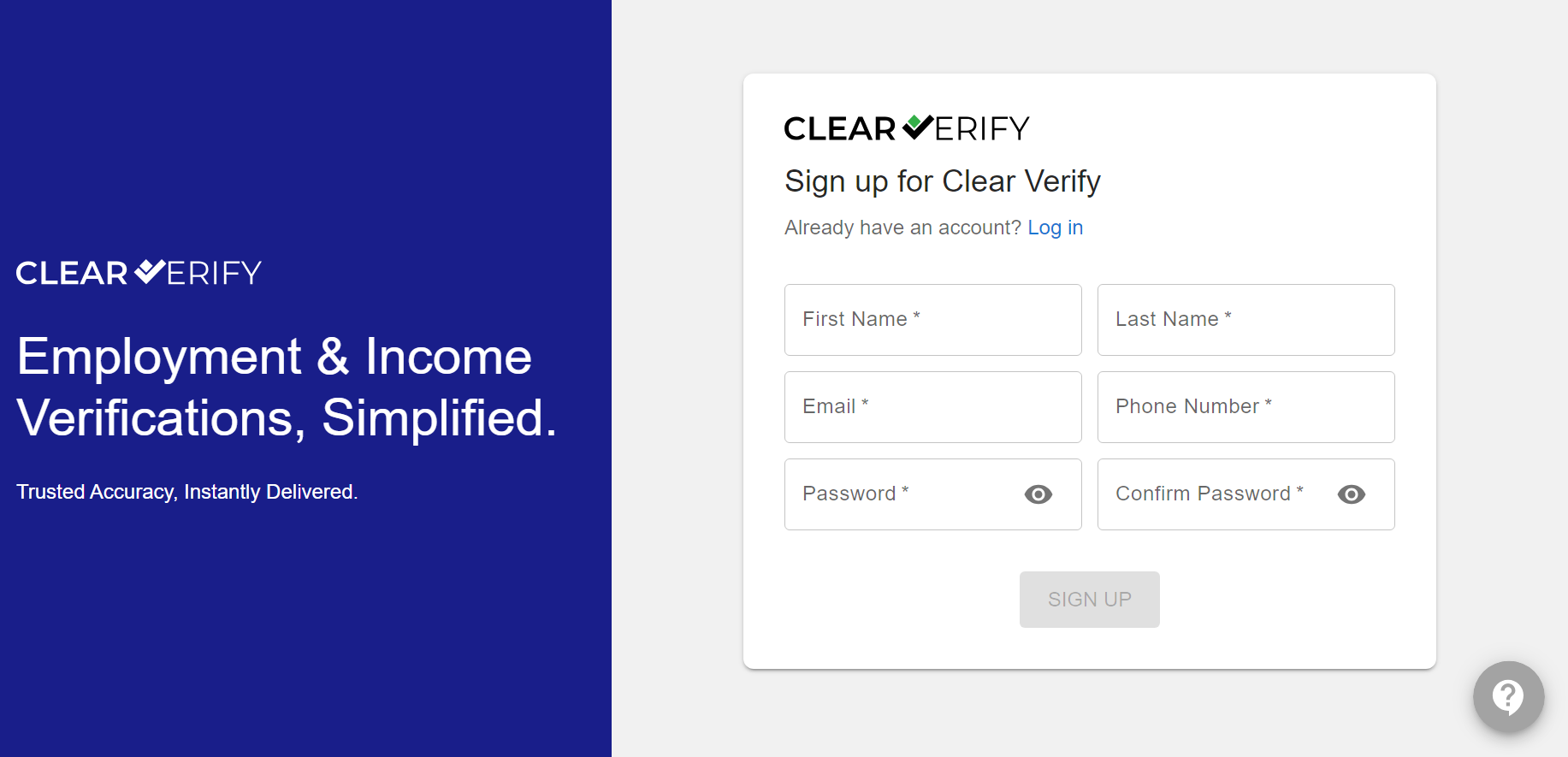
When creating your password, you will need to have a minimum of 8 characters and at least:
- 1 lower case letter
- 1 upper case letter
- 1 number
- 1 special character
Select your account type and agree to all disclosures.
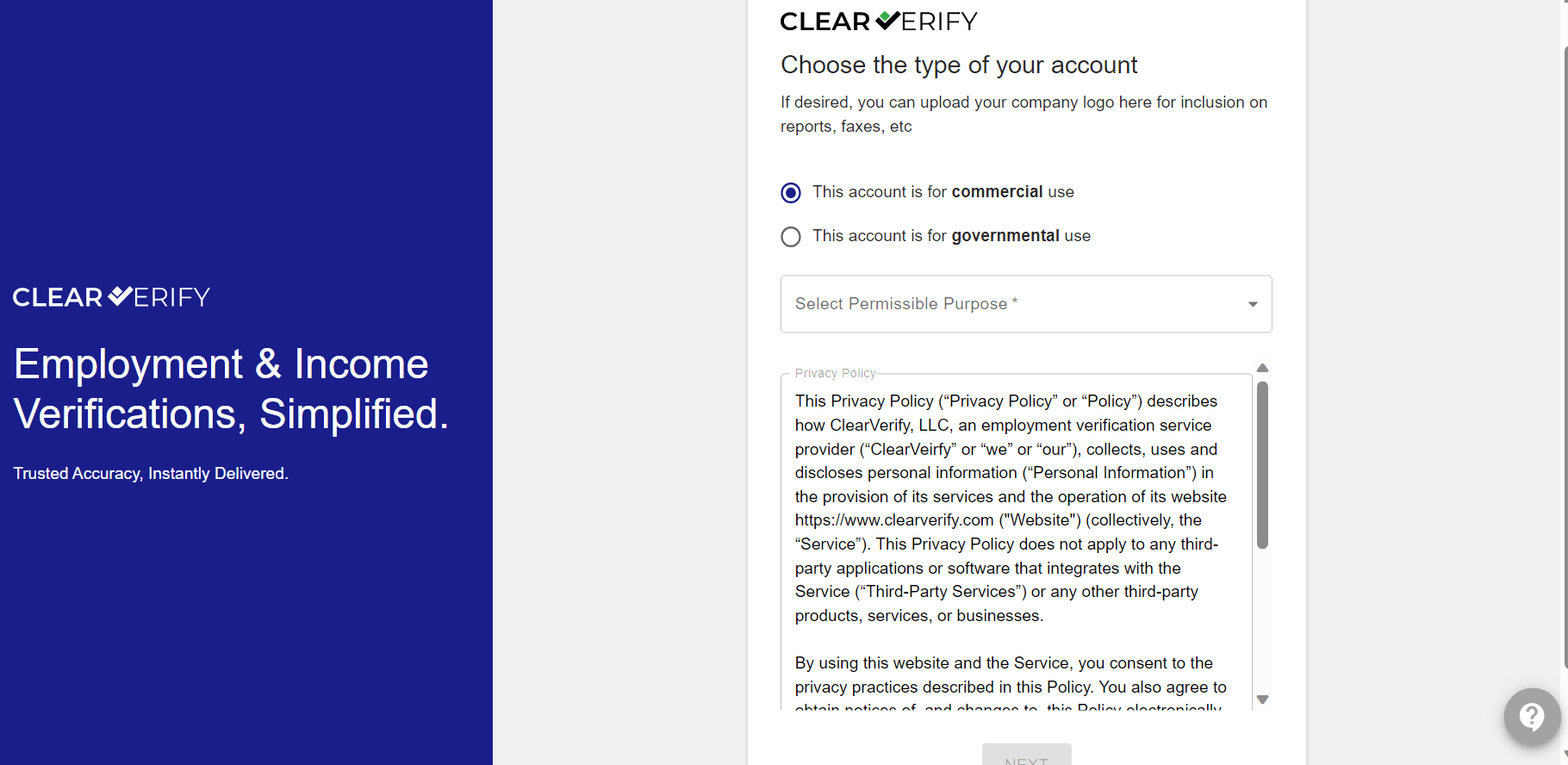
Fill out your company Information
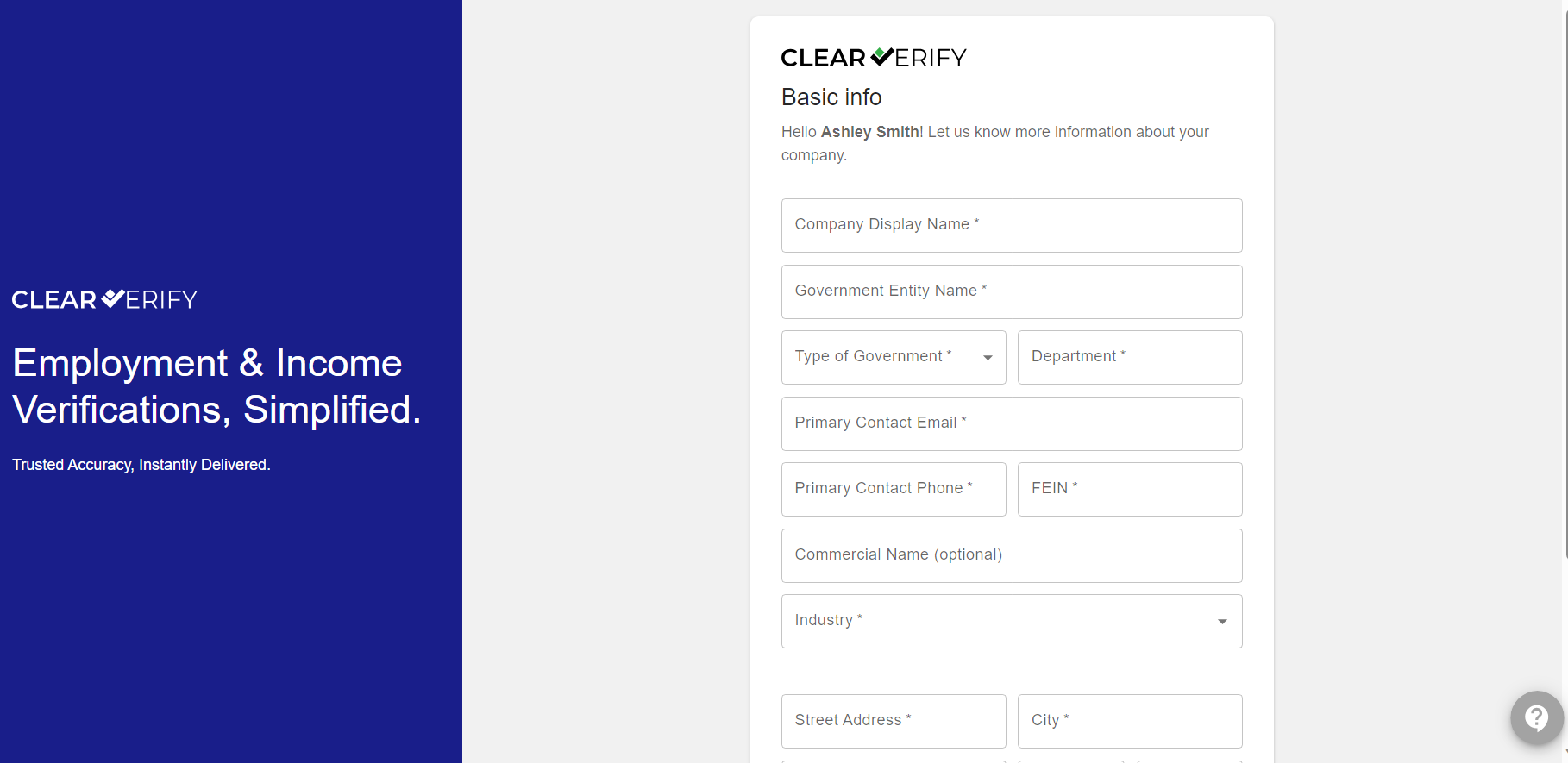
Adding a logo is optional. It is helpful because it will appear alongside your verifications for employees to see, but it's not mandatory.
Government Verifiers will still need to fill out the company information with their government office and department information.
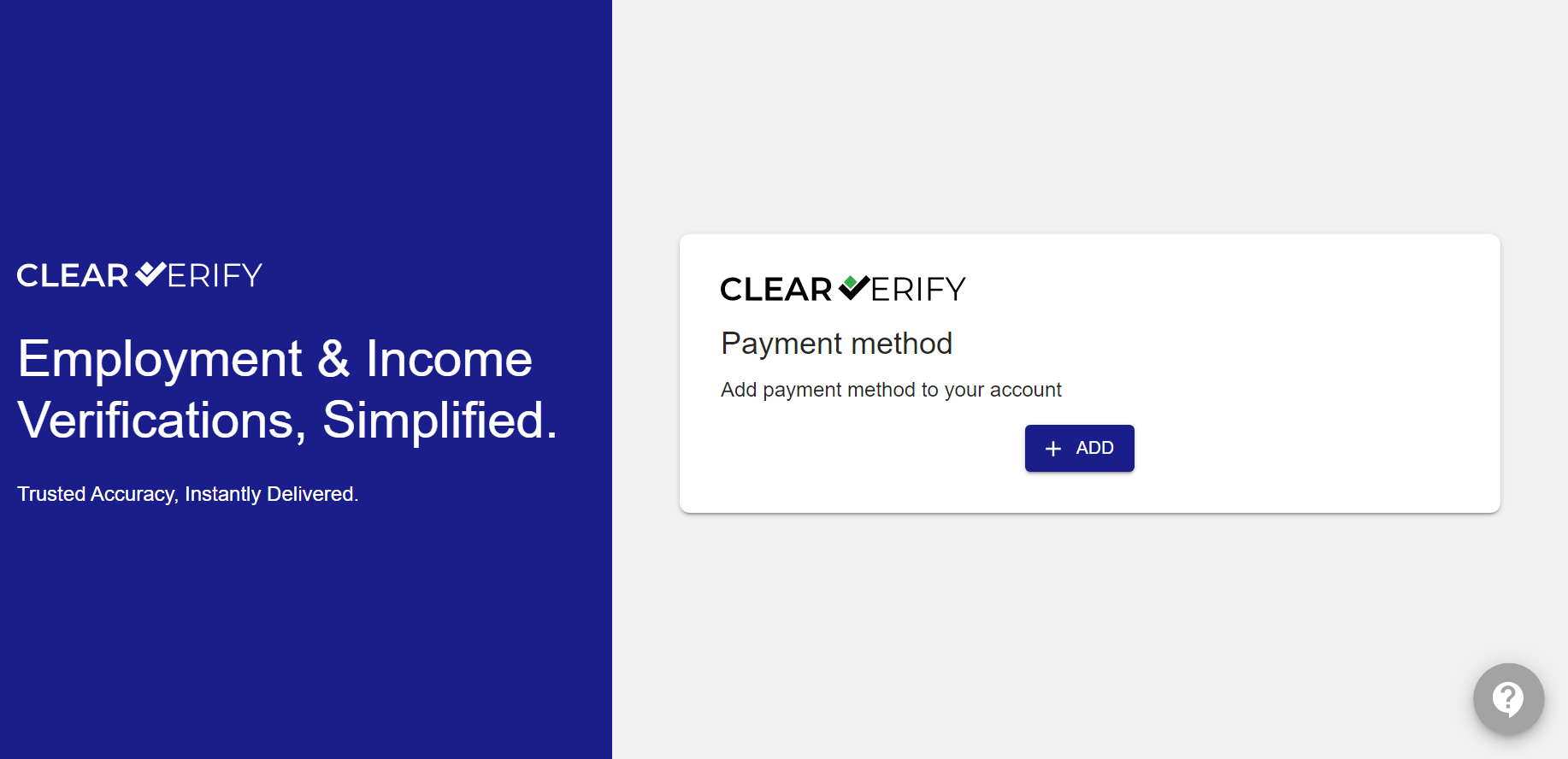
- Add the payment method you intend to use for purchasing verifications (commercial verifiers only)
*Note: You will be able to change this payment method or add others in your account settings. *
After you sign up, there will be a credentialing process. Someone from our team will confirm that your personal and company information is valid. We aim to complete this process in 1 business day.
Sign-in Process
To sign in, simply go to https://app.clearverify.com/auth/login and enter your credentials.
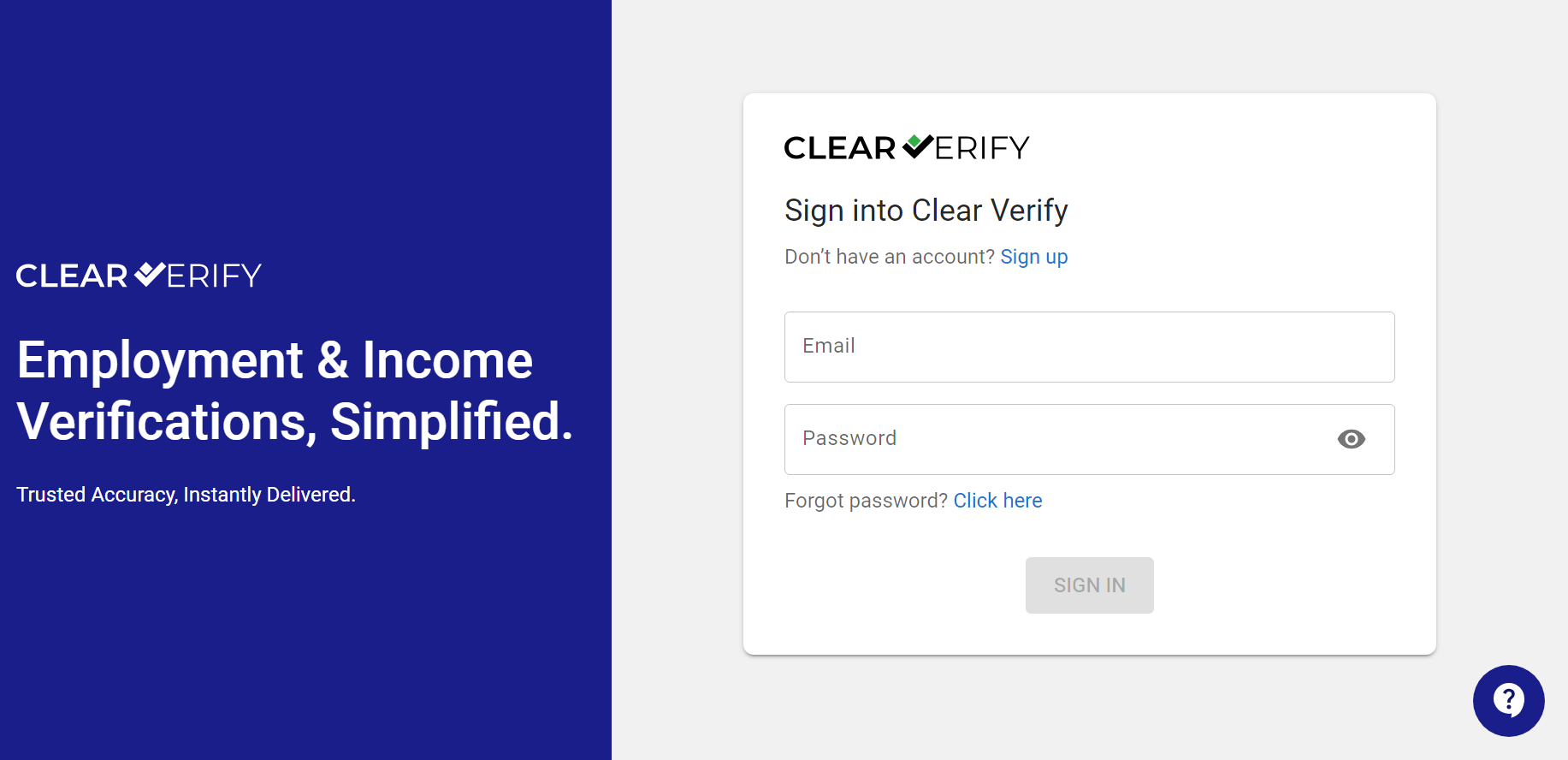
If you need to reset your password for any reason, click ‘Reset Password’ > enter the email address you signed up with > click ‘Send Reset Link.’ You will receive an email with instructions to change your password.
Need more help?