
In the Staff tab, you can view and manage the team associated with your account. Keep reading to learn more about managing your staff with Clear Verify.
Topics:
- Inviting Users
- User Details
Inviting Users
To add a staff member, click the ‘+ New’ button in the right corner of the Staff page. Simply input the user’s corporate email address, determine whether they will be treated as an admin or a manager, assign locations, and click enter. To add multiple users at the same time, click ‘+ Add Another.’ Then, click ‘Send Invite.’
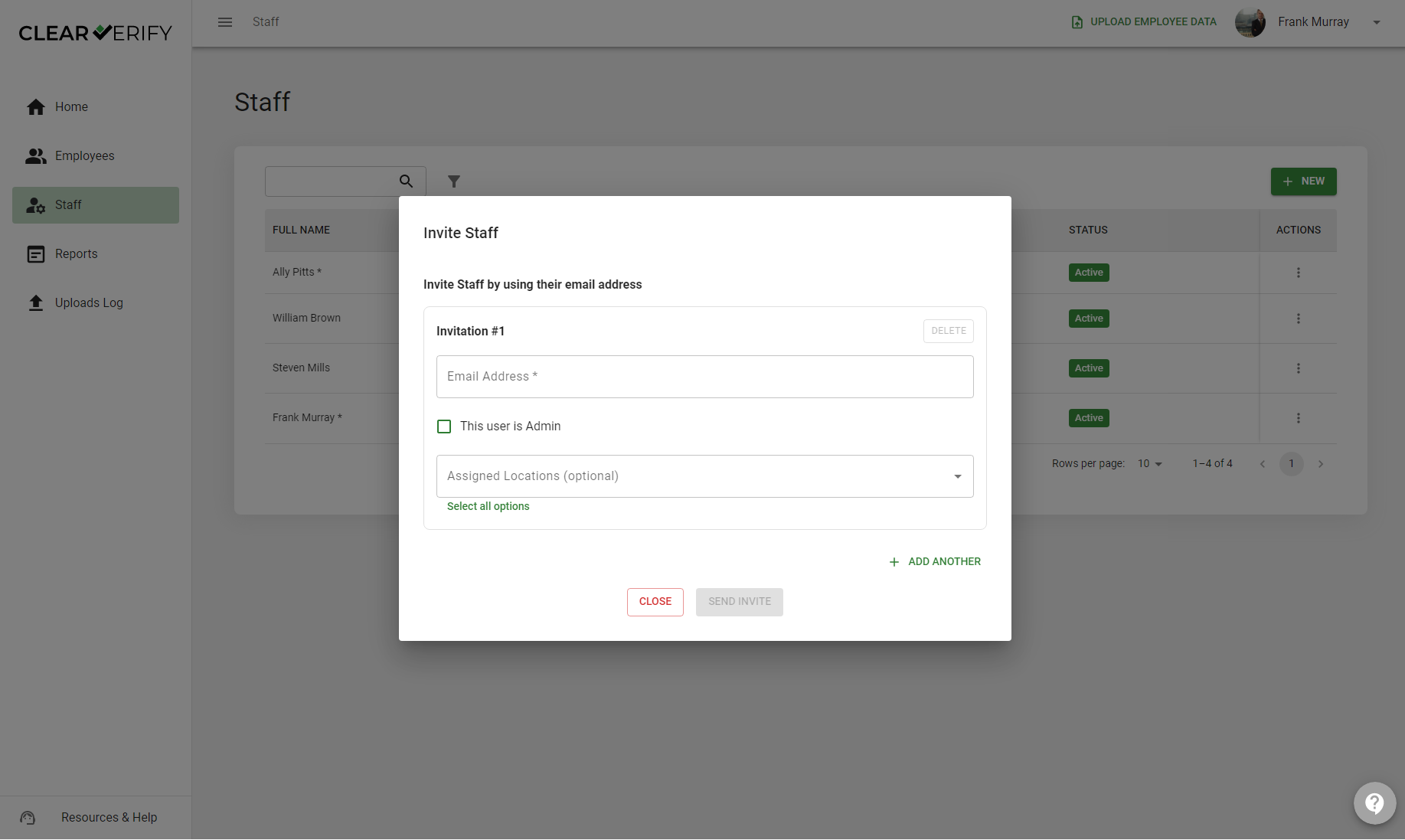
If you select “This user is an Admin”, the user will have full access to the account. If you do not select this, you will need to assign specific locations to the user to limit their access.
User Details
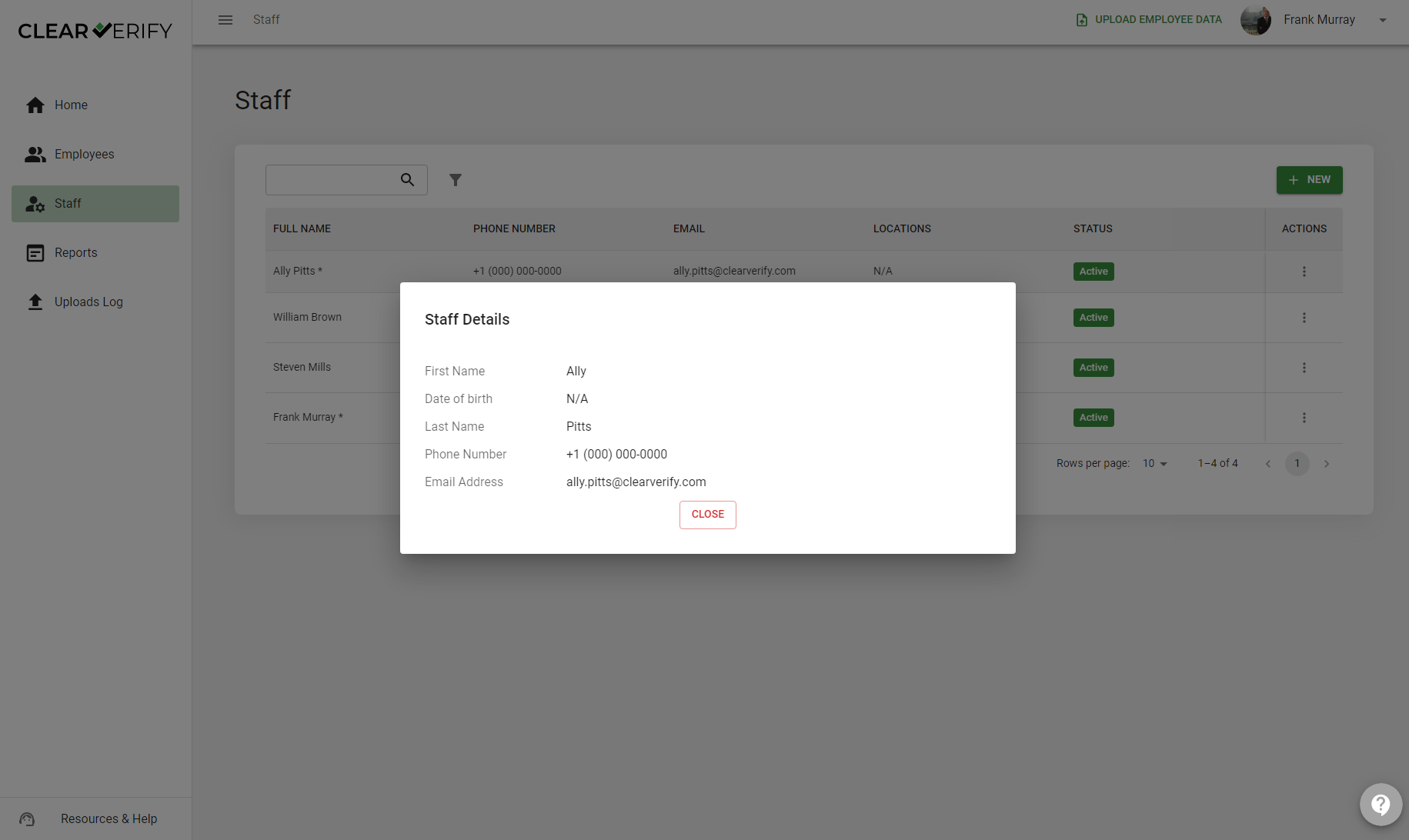
To view the details of a user, find the icon under the “Actions” column next to a user, then click ‘View Details.’ This will show you various details about a user, as well as allow you to activate or deactivate the user.
Need more help?