
In the Employees tab, you can view all your employees in Clear Verify and invite them to set up an account of their own.
Topics:
- Employees Table
- Inviting Users
- User Details
Employees Table
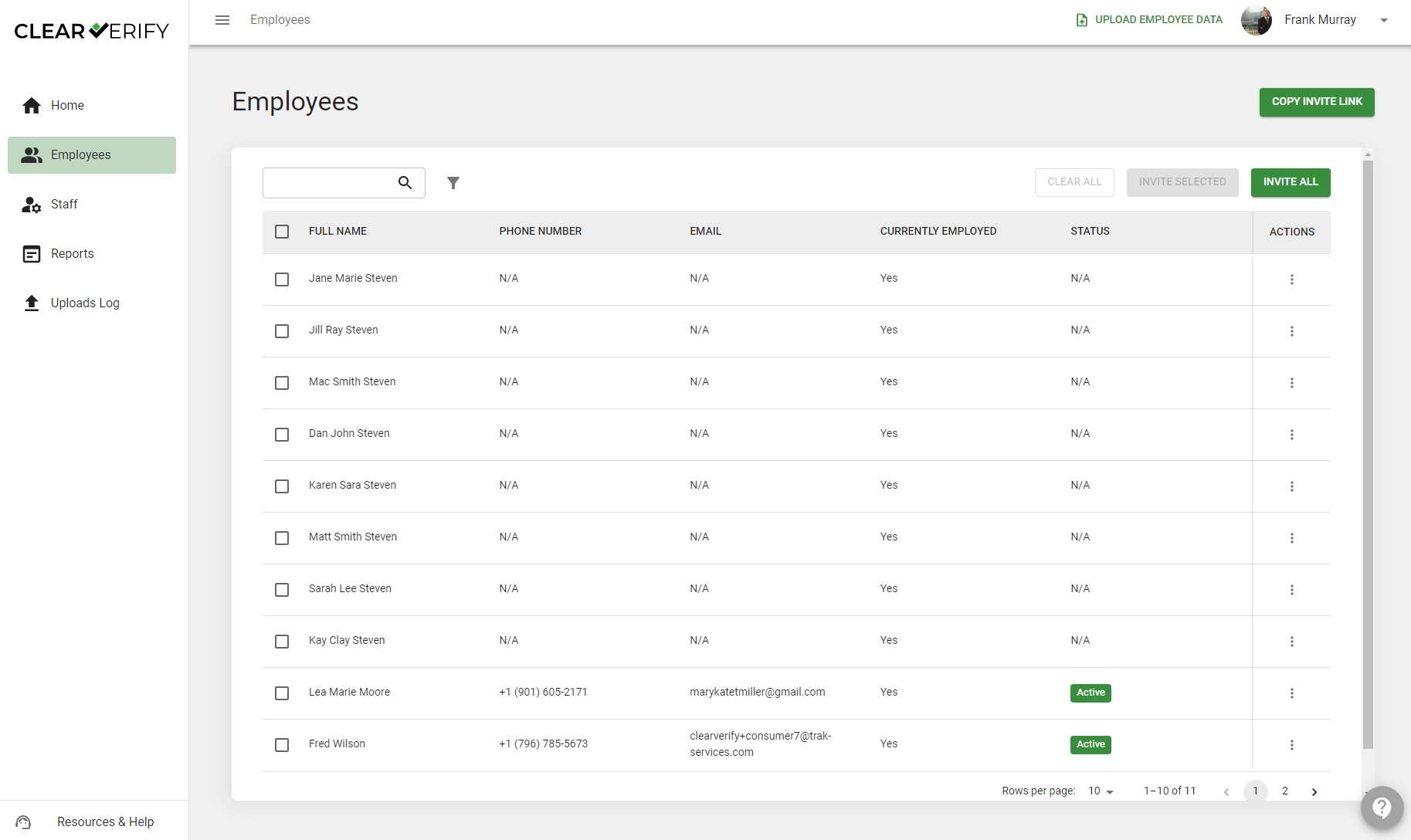
The Employees Table shows you all employees within the platform, their basic information, whether they are currently employed with you, and their account status (whether or not they have set up a Clear Verify account).
Inviting Users
To invite employees to create an account, you have a few options:
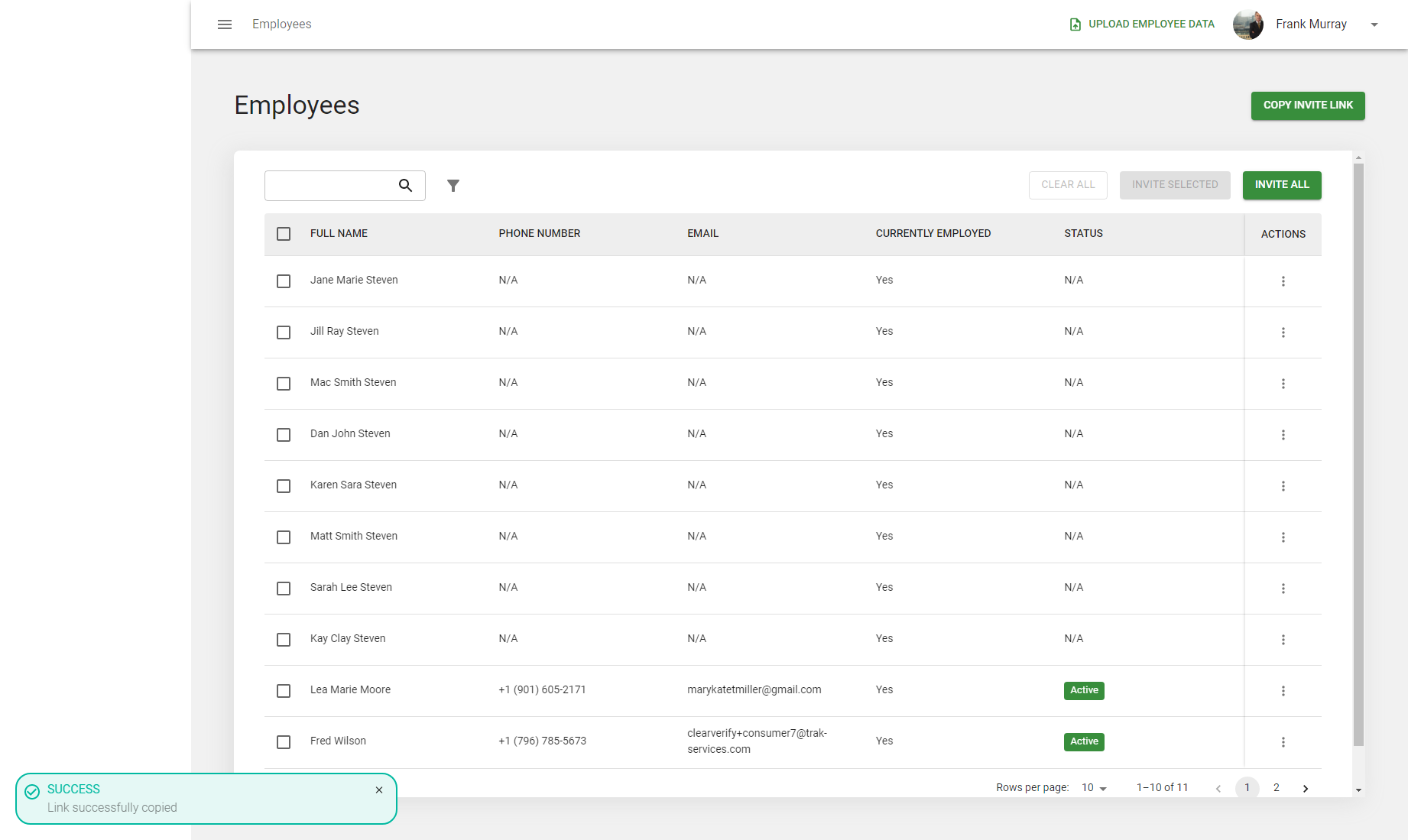
- Custom Invite Link: By clicking ‘Copy Invite Link’, you can copy your company’s personal invite link. This link can either be shared with employees via email, signage in break rooms/on-site, or be added to your employee portal.
- Bulk Employee Invite: You have the option to invite your employees in bulk by selecting one, many, or all employees, and selecting ‘Invite Selected’ or ‘Invite All’. They will receive an email invite to sign up for an account.
User Details
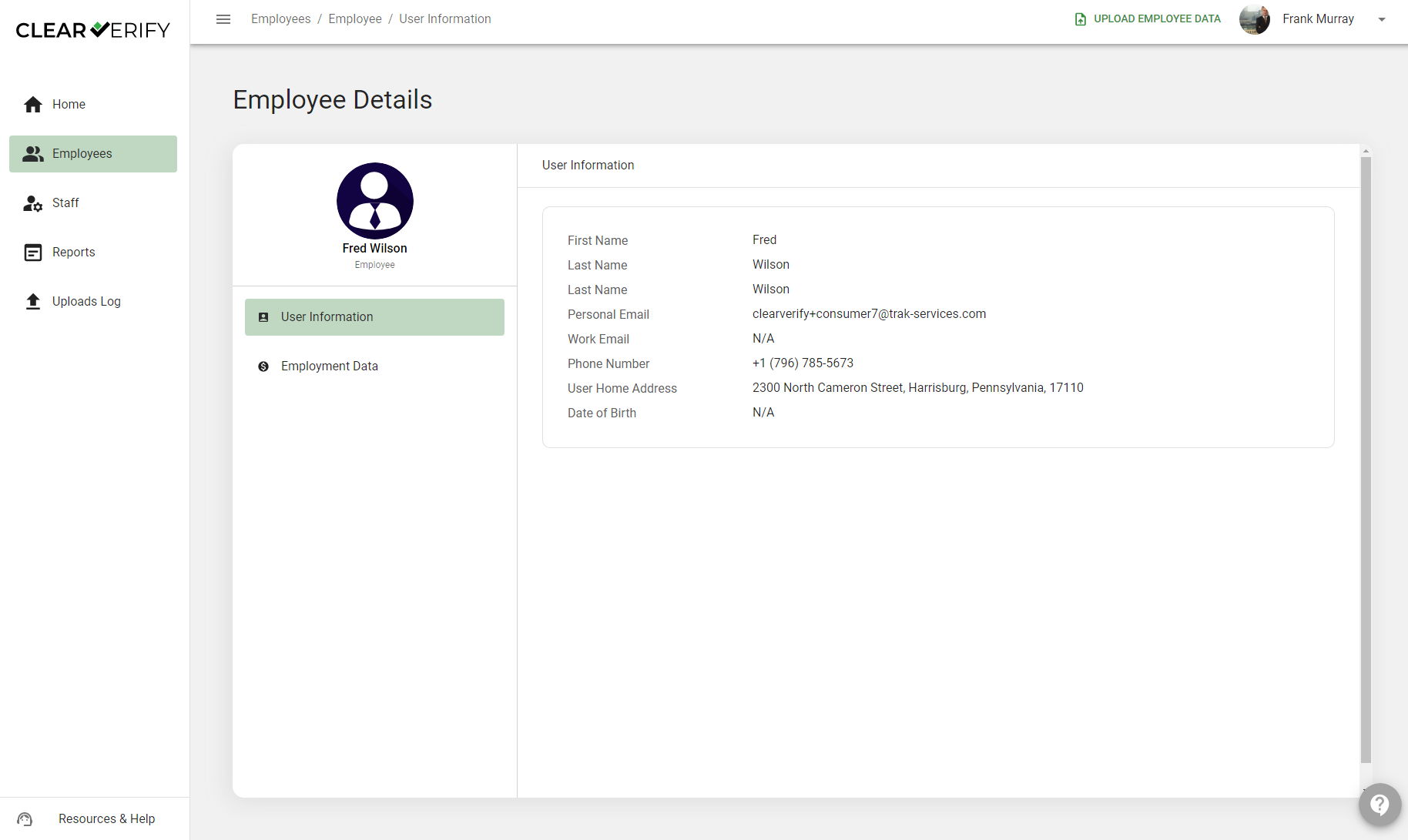
To view the details of a user, click the icon under the “Actions” column next to a user, then click ‘View Details’. This will show you various details about your employee, including their personal employment data.
Need more help?